Online banking and Duitnow QR (Non- official gateway)
Online Banking
Online Banking
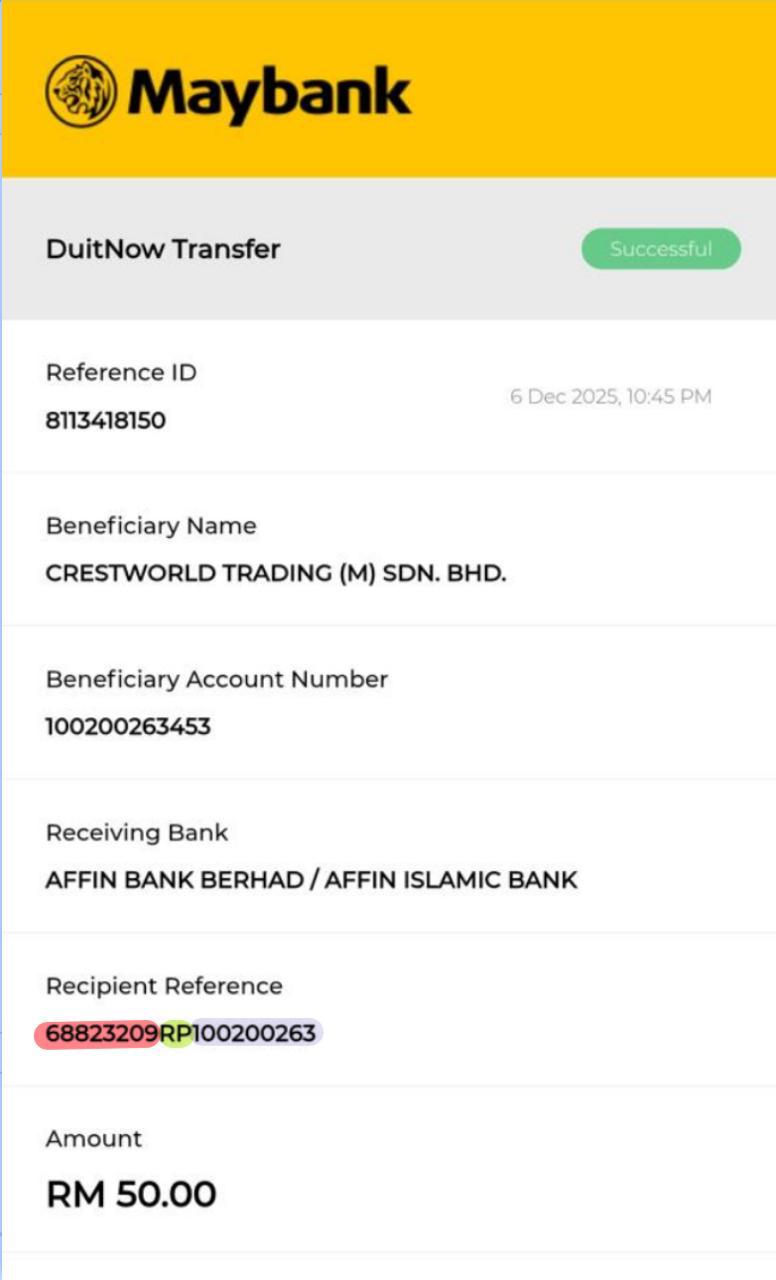
Online Banking Transaction Verification – Recipient Reference
Green – RP
- Transactions with “RP” in green are from our system.
Red – RP TRANSACTION ID
- Each Transaction ID is unique and used for verification.
Purple – BANK ACCOUNT NUMBER
- We have multiple accounts with the same name in different banks.
- Use this field for accurate identification.
Rapidpay - Check slip
- Copy the Slip Transaction ID
Example: xxxxxxxxRP6183165637382 → XXXXXXXX (This is the Transaction ID)
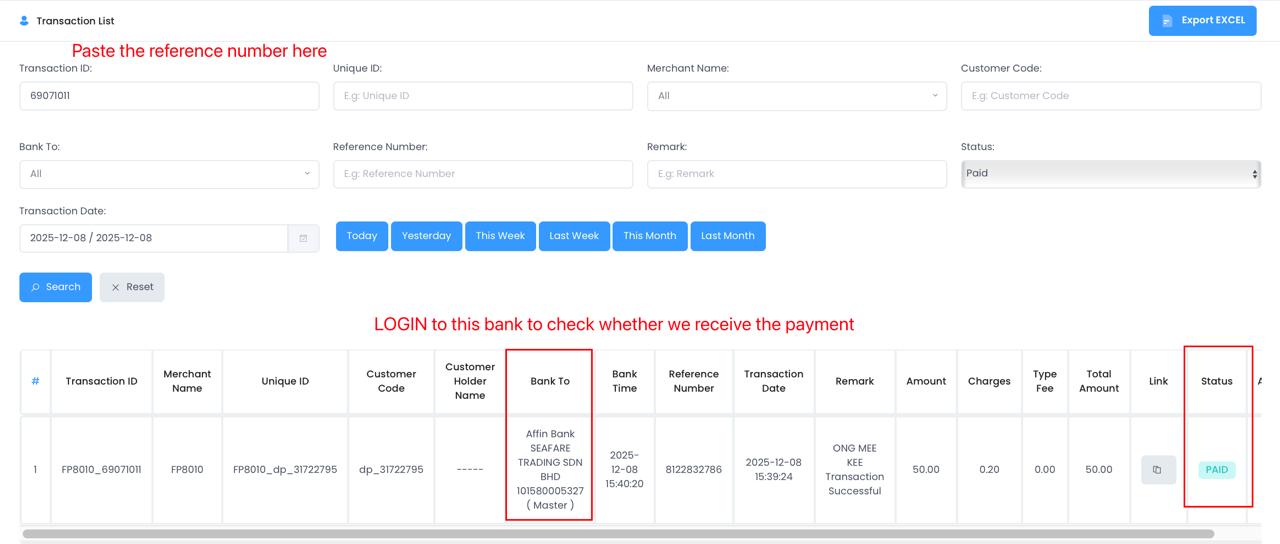
- Paste it in Rapidpay Transaction List→ transaction ID.
- Check payment Status
- Paid : Received & Update
- Pending/Failed : Need login bank to manually check whether we receive payment
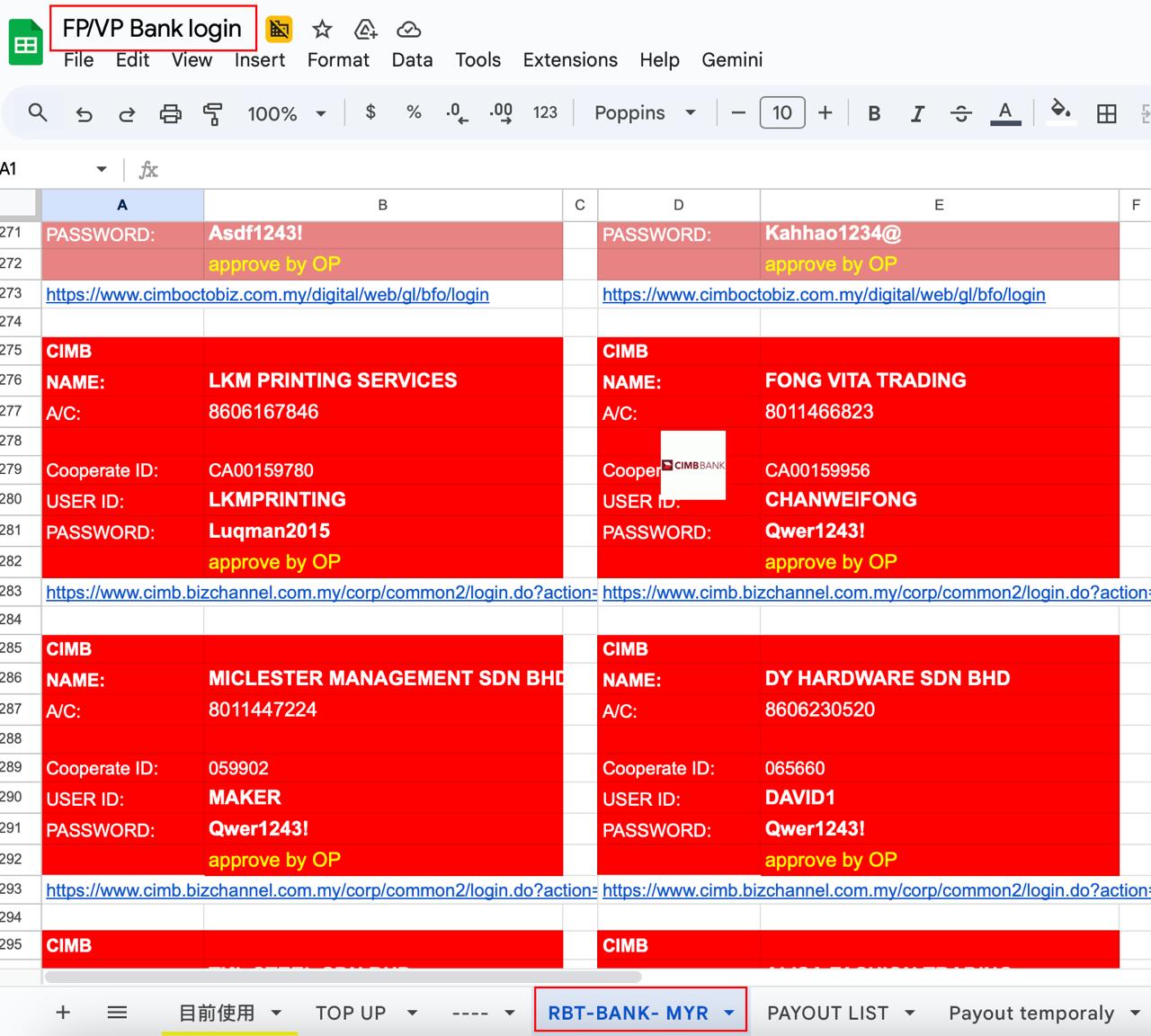
Note: Get the bank details at the google sheet named FP/VP Bank login > RBT Bank-MYR
.
Note: Get the bank details at the google sheet named FP/VP Bank login > RBT Bank-MYR
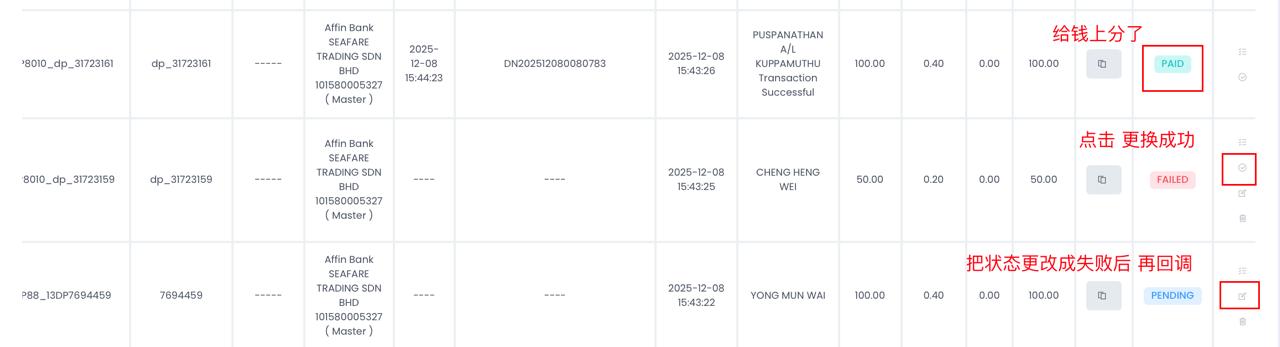
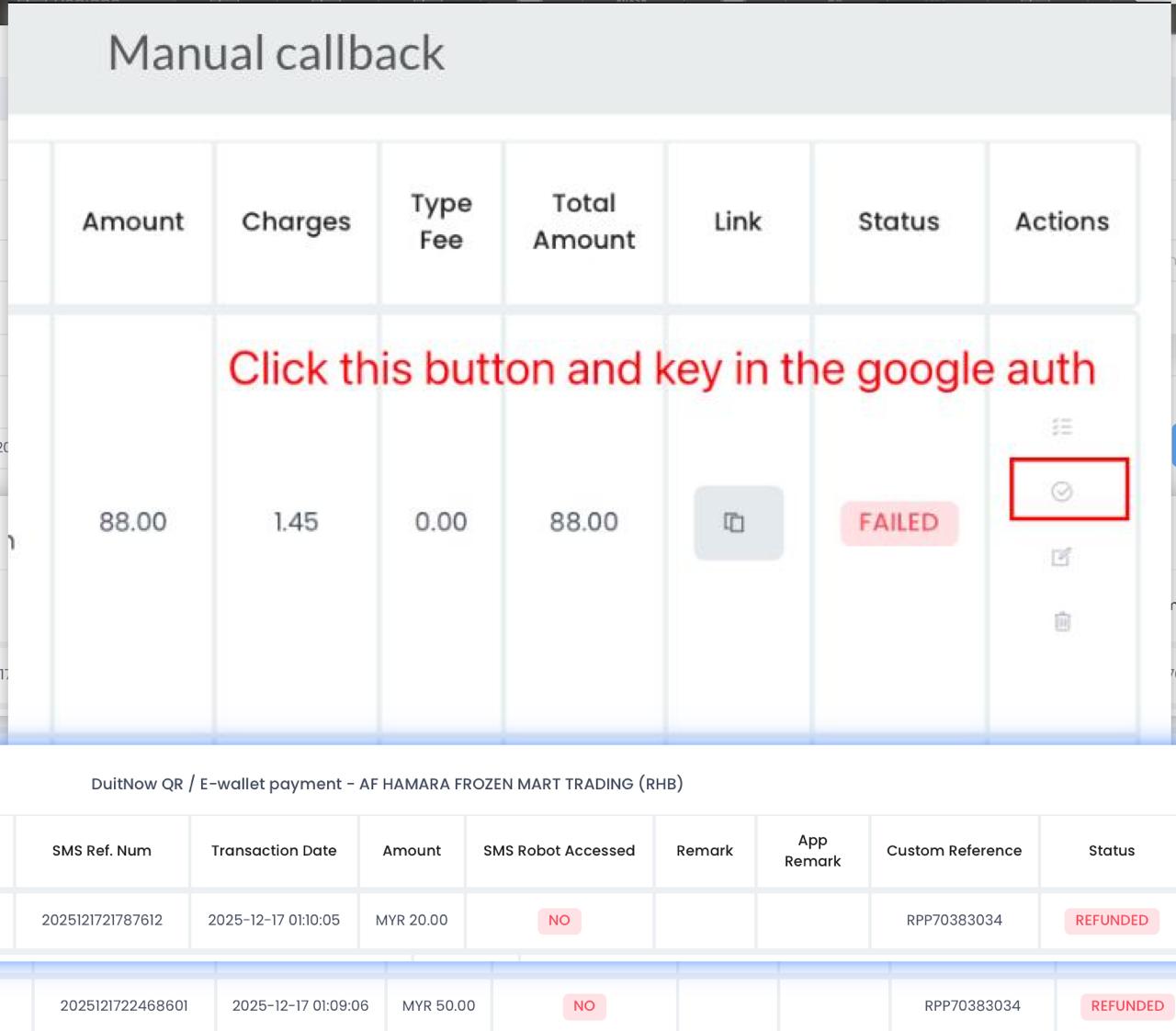
- After manually checking with the bank, if the bank has received the funds, the transaction needs to be update manually.
- FAILED
- Click to direct manual update
- Pending –
- Click > Status change fail > Search again the relevant transaction ID > Click to direct manual update
Lorem ipsum dolor sit amet, consectetur adipiscing elit. Ut elit tellus, luctus nec ullamcorper mattis, pulvinar dapibus leo.
FPAY / VPAY - Check slip
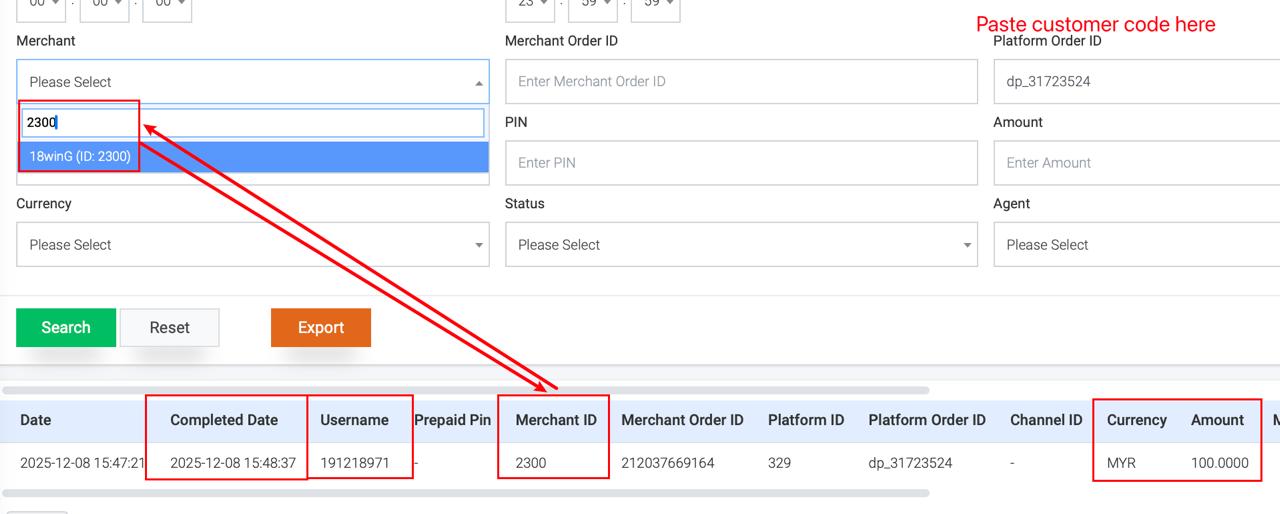
Find the transaction.
Copy Customer Code from Rapidpay – Transaction List.
Go to Fpay – Order List – Paste it in Platform Order ID
Before providing the merchant order ID to the merchant, please refer to the TELEGRAM merchant’s receipt to match the information, you can compare (status, amount, completion date, user name, merchant ID) via Fpay for checking
If all info MATCH, provide Merchant order ID to merchant mention done.
RAPIDPAY/FAST2PAY- Check slip
Copy TRANSACTION ID + CUSTOMER CODE + REMARK to merchant
Go to FPAY – ORDER LIST – Paste in Platform Order ID
Before providing the INFO to the merchant refer, please refer to the TELEGRAM merchant’s receipt to match the information, you can compare (status, amount,Merchant Name, Remark,) via RAPIDPAY for checking
DuitNow (Rapidpay)
DuitNow (Rapidpay)
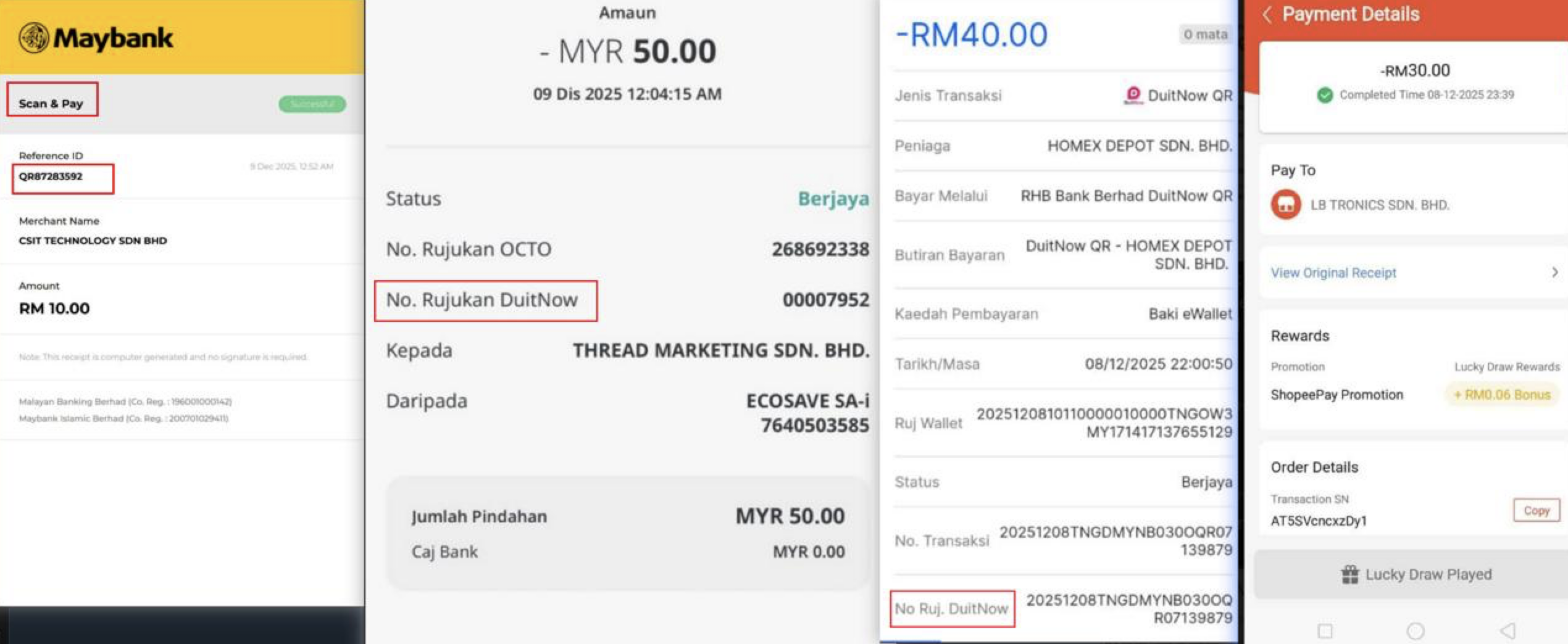
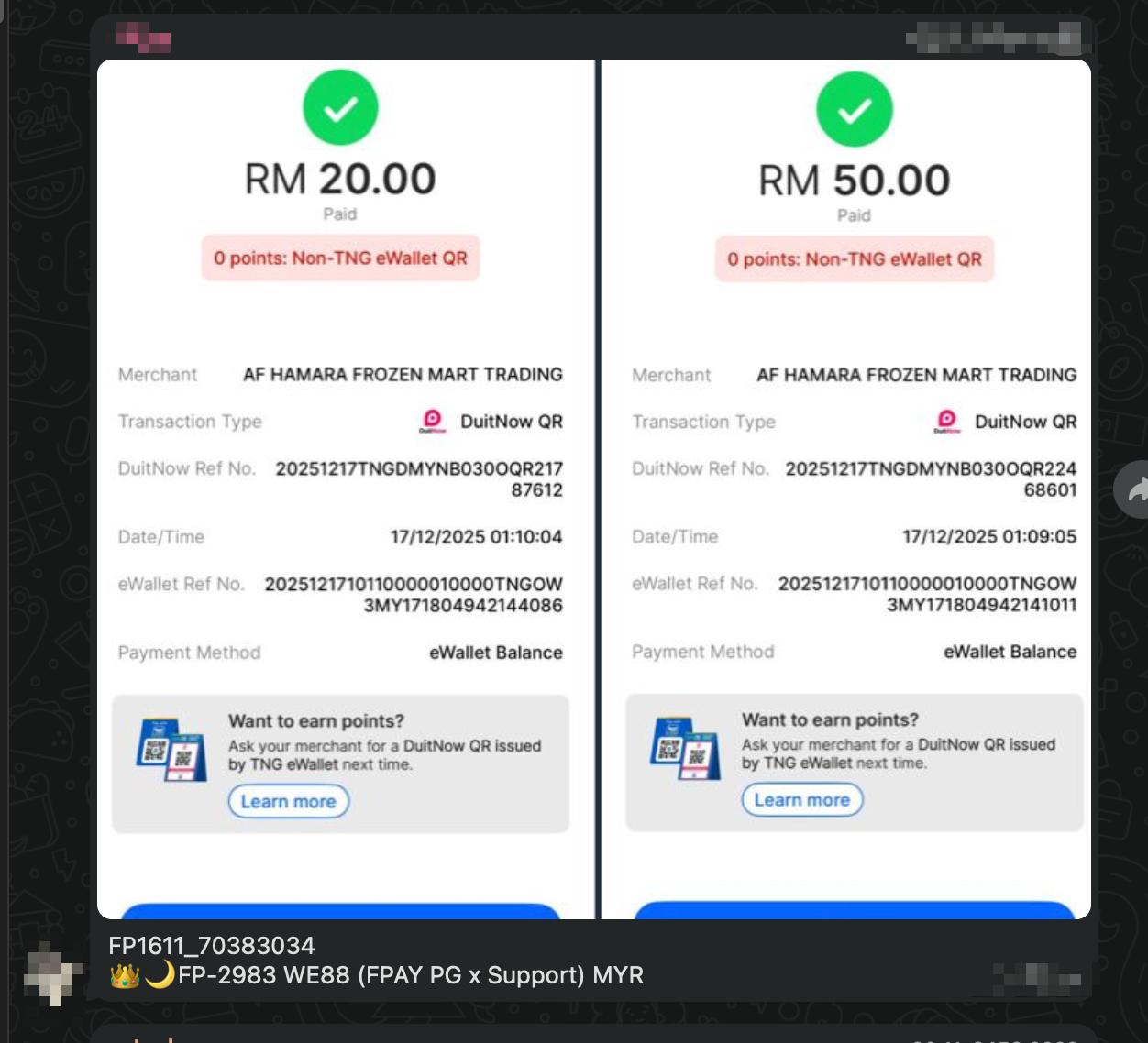
Duitnow Slip Example
Duitnow supported bank
Channel Service: Duitnow
Supported Banks: Malaysia Mobile Banking App, Grab, Touch N’Go, Boost
Details to Check in Rapidpay
Affin Bank
Bank Holder Name
Time
Amount
RHB
RPP Number (Transaction ID)
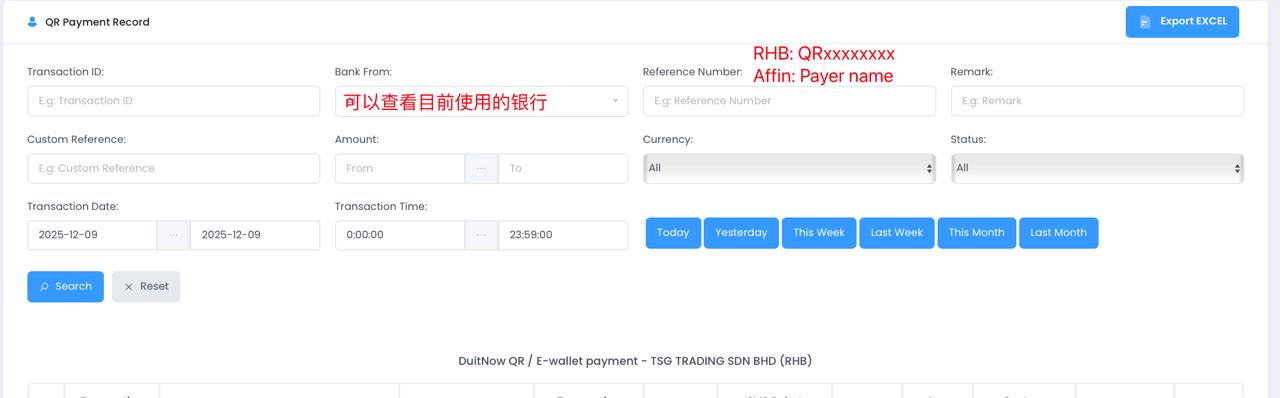
Reference Number (QRxxxxxx)
Time
- Amount
Bank code for reference
MFBB = alliance
ARB = ambank
ARP = shopee
BOST = boost
BKR = bank rakyat
AGO = agro bank
BOST = boost bank
GRAB = grabpay
GX = gx bank
ACD = AEON BANK
SVSB = SETEL
BSN = BSN
CIB = CIMB
SCC = RYT bank
Step for check slip
- Check the following detail when received slip
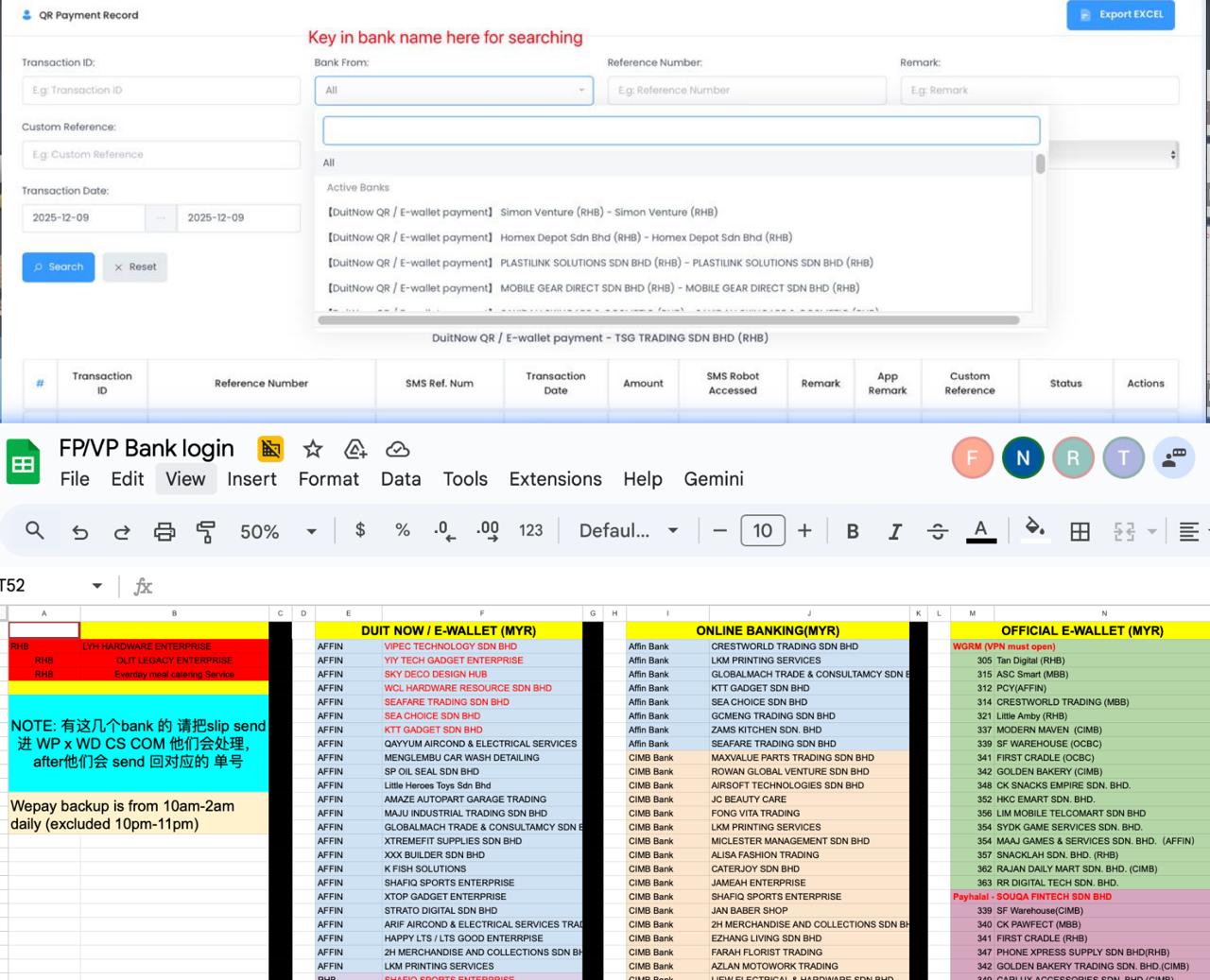
- Rapidpay → QR Payment Record → Bank From (check the bank under “Our”).
Google Sheet → Bank Login → (目前使用).
- If Bank is Under Our Name – Check & Fill:
- Reference Number – Fill in the “Reference Number” and “Remark” fields.
- RHB – Copy details (e.g., QRxxxxxx, Reference No., etc.).
- Affin – Merchant must provide the Payer’s Account Holder Name.
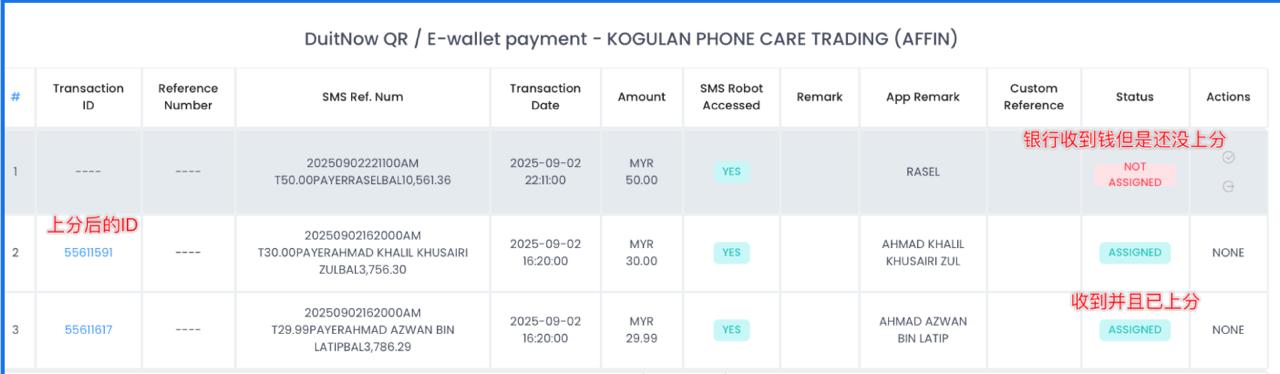
- Check on the Status
Assigned
- Received & Update
Click on the transaction ID → Refer Info → Get back to merchant.
Not Assigned
- Bank received Payment but Not update to Client
Help update the correct Transaction ID in the system before notifying the client.
(Step can refer to next page)
Payment Verification & Update Process
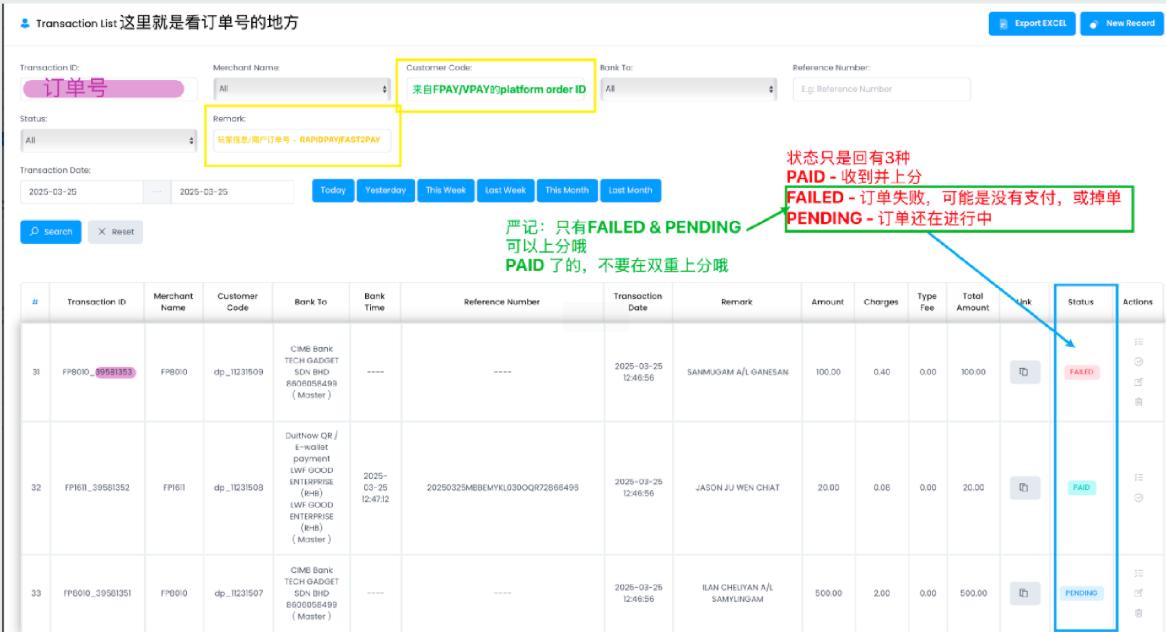
RapidPay
- Search in RapidPay
Paste the Customer Details into:
RapidPay → Transaction List → Remark Field
- Locate and copy the corresponding Transaction ID
- Update QR Payment Record
- Navigate to: QR Payment Record → Not Assigned section →Paste the TRANSACTION ID in the required field → Always click the “CALLBACK” button after each update
- Verification & Reporting
After the system processes the top-up:
- Check backend to confirm status = successful.
- Send the Merchant Order ID back to the merchant for reference.
FPAY/VPAY
- Obtain Customer Information
Get the relevant customer details (Merchant Order ID or Member Username) from the merchant to locate the transaction.
- Search in FPAY / VPAY System
In FPAY/VPAY system → Order List → Paste USERNAME / MERCHANT ORDER ID field. ( either Merchant Order ID or Member Username)
- Retrieve Platform Order ID
Copy the PLATFORM Order ID shown in the results.
- Search in RapidPay
Paste the PLATFORM Order ID into: RapidPay → Transaction List → Customer Code field → Copy the Transaction ID
- Update QR Payment Record
- Navigate to: QR Payment Record → Not Assigned section →Paste the Transaction ID in the required field → Always click the “CALLBACK” button after each update.
- Verification & Reporting
After the system processes the top-up:
- Check backend to confirm status = successful.
- Send the Merchant Order ID back to the merchant for reference.
Combine assign slip
- When customer send 2 slips to us and need us to assign into 1 ID, we need to combine and assign both payment.
- When To Bank is different bank name, CS should change the bank name before manual callback that transaction
- After done the process of combine assign, CS need to send the slip+transaction id into whatsapp group named COMBINE ASSIGN for recording purpose
- CS neeed to mention transaction ID + merchant name when sending slip into the relevant group.
Step of change bank at transaction list
1. Go to RP transaction list, found the transaction ID > click Edit > Bank to change to the relevant bank (The recipient bank of the slip)
2. Click submit and refresh the page
3. Confirm the bank details is same with the recipient bank of slip > direct click for manual callback
Note: If the recipient bank is different for 2slips needed to be combine, kindly make sure you done change bank to 1 of the banks
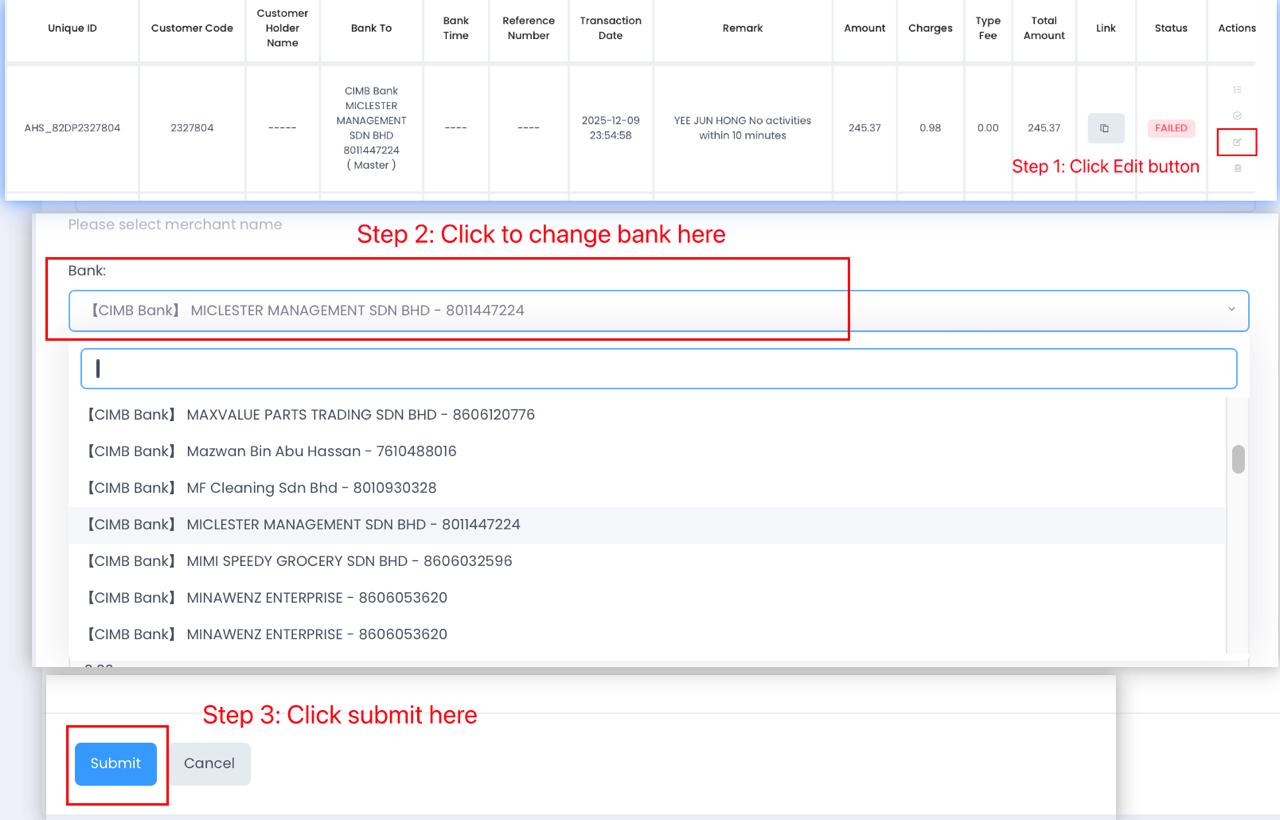
Steps of Combine Assign slip
Check whether our side received both payment.
Click refunded button at QR payment record
Get the order ID provided by merchant
Paste in Fp order list > merchant order id > get the platform order id
Paste in Rp transaction list > customer code
Change bank to relevant bank and manual callback that transaction id
Send the slip+transaction id into whatsapp group COMBINE ASSIGN
Note:
Make sure click refunded button for both payment before proceed manual callback
Make sure the amount of the ID is same with the total amount of 2 slips before proceed
QR Payment Slip (Rapidpay)
Qr Payment Slip (Rapidpay)
Player Payment Submission & Verification
- Player Self Submission
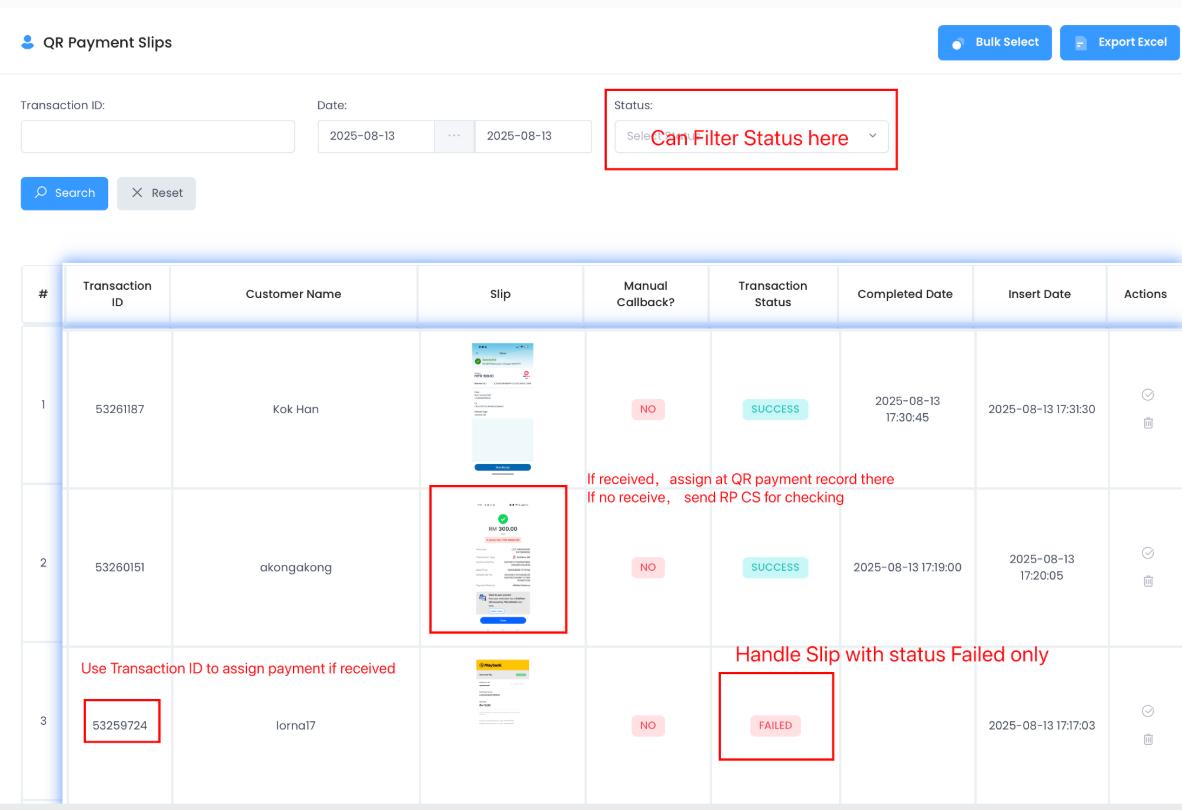
If the player does not receive credited funds within the expected time, they should submit their payment receipt via the Payment Page.
- CS Verification
Verifies the transaction in: RapidPay → QR Payment Slips.
- Transaction Status Check
Go to: Transaction Status → FAILED / PENDING.
Only check transactions marked as “FAILED” (means the system has not auto-updated). For these, CS must manually check and assign.
- Slip Verification & Credit Assignment
Click SLIP to review payment details. Cross-check with: RapidPay → QR Payment Records to confirm if payment is received.
- If received but Not Assigned → CS must manually assign credit.
- If received but Assigned to other IDs→ Click ban
** Only proceed if the slip is valid
- Manual Assignment
Use the Transaction ID from the QR Payment Slip to assign credit in the system.
- Unreceived Payments Escalation
If payment is not yet received:
- Capture a screenshot of the payment slip.
- Send it to RapidPay CS via WhatsApp for further resolution.
Comments are closed