PAYOUT
Withdrawal Payout Robot
Withdraw Robot (Rapidpay)
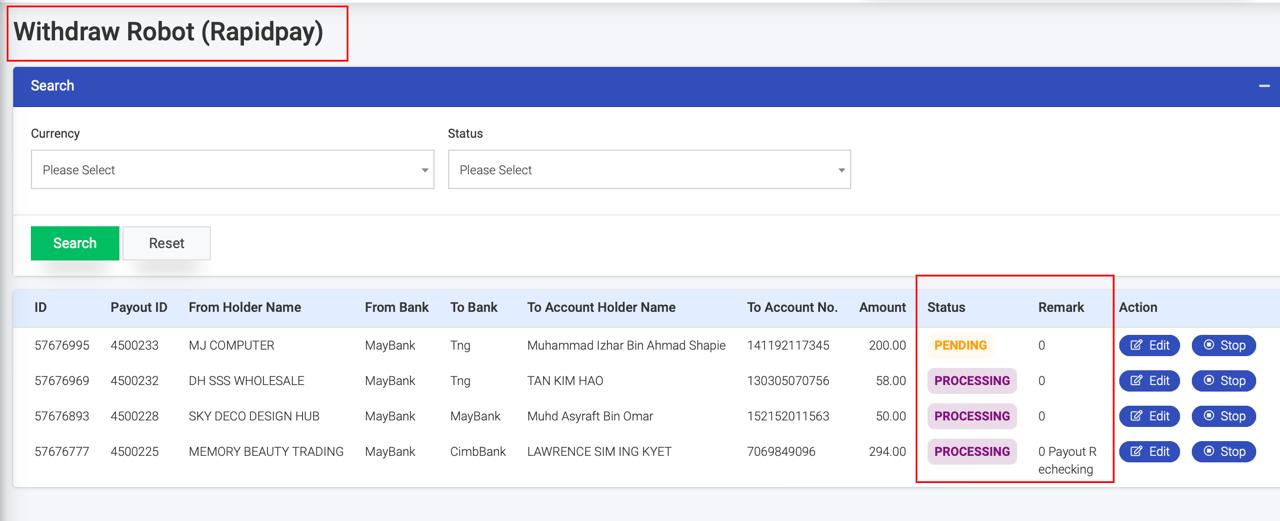
Automated Payout Processing
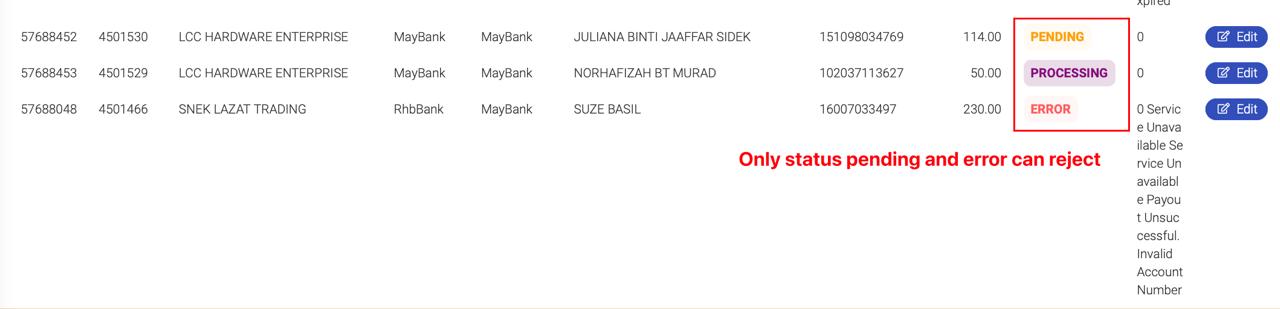
This section is handled by a bot and displays the current processing status:
Pending : Queued for processing.
Processing : Currently being handled by the bot.
Error : Unsuccessful; error details are provided
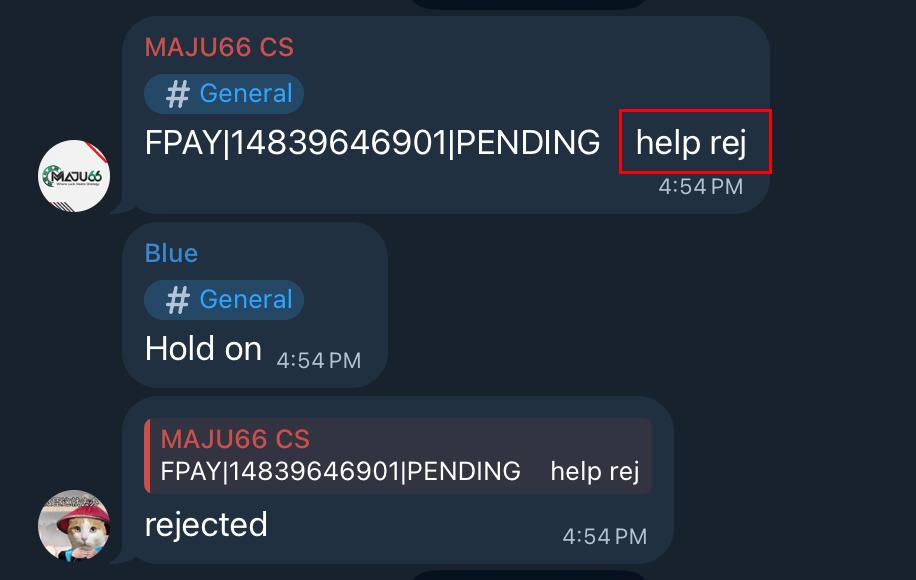
If a transaction fails, check whether it should be rerun, set to rechecking or rejected.
For detailed error reasons, refer to Telegram: FPAY CS – PAYOUT ROBOT (RAPIDPAY).
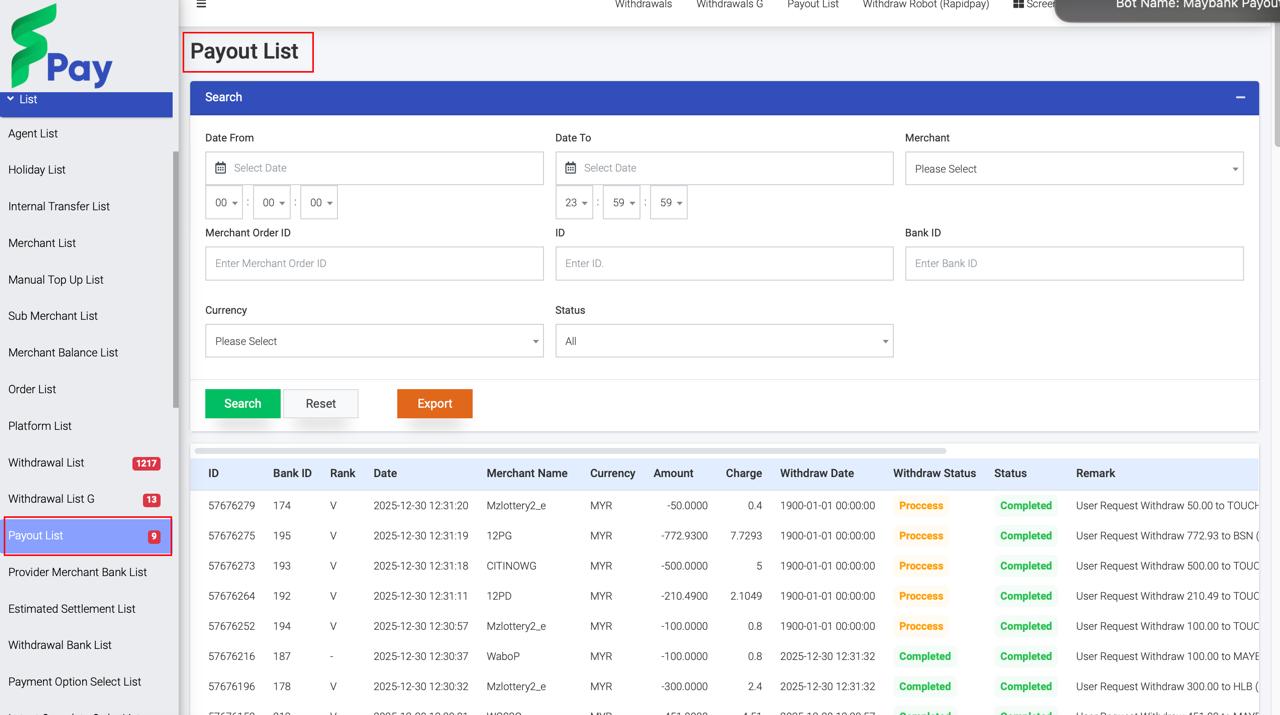
Check status with PAYOUT LIST with PAYOUT ID
Completed : Not able to cancel or reject
Processing : Need do further check in FPAY – Withdrawal Robot (RAPIDPAY)
Pending & Fail: : Can stop to process
Processing : Not able to reject
Fail : Check remark reason ( Already been cancelled or rejected)
Merchant request to reject or status failed due receiver bank issue
TELEGRAM - Monitor Payout Robot (RAPIDPAY)
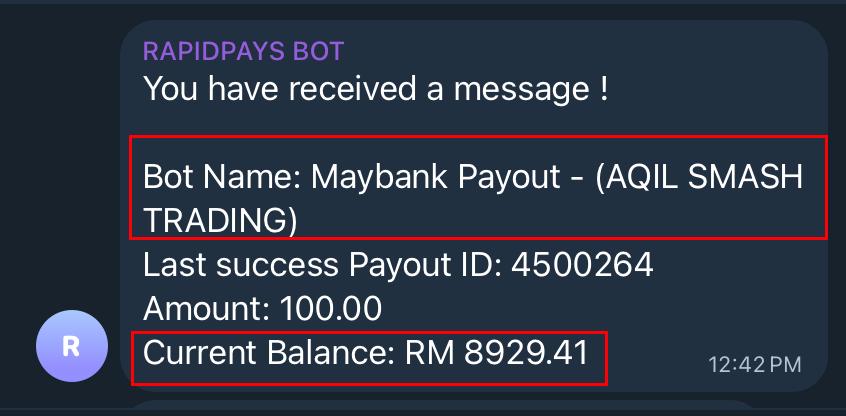
TELEGRAM - FPAY VPAY NOTIFICATION (MERCHANT DAILY....)

BOT Processing Time
– The bot typically completes payout transactions within 5 minutes.
Pending Alert
– If a transaction remains in “Pending” status for more than 5 minutes, a notification will appear here.
Action Required
– CS should refer to FPAY – Withdraw Robot (Rapidpay) for further investigation and handling.
Check payout status
- Merchant Order ID
Get the payout order number from the merchant. - Search in System
Copy the order ID and search in FPAY – PAYOUT LIST.
If Found:
Completed : Inform the merchant: “Status: Completed.”
Processing : Inform: “Still processing – please wait.”
Fail : Click VIEW to check the failure reason
(e.g., Name mismatch, Invalid account, or Receiver bank issue).
If NOT Found in PAYOUT LIST:
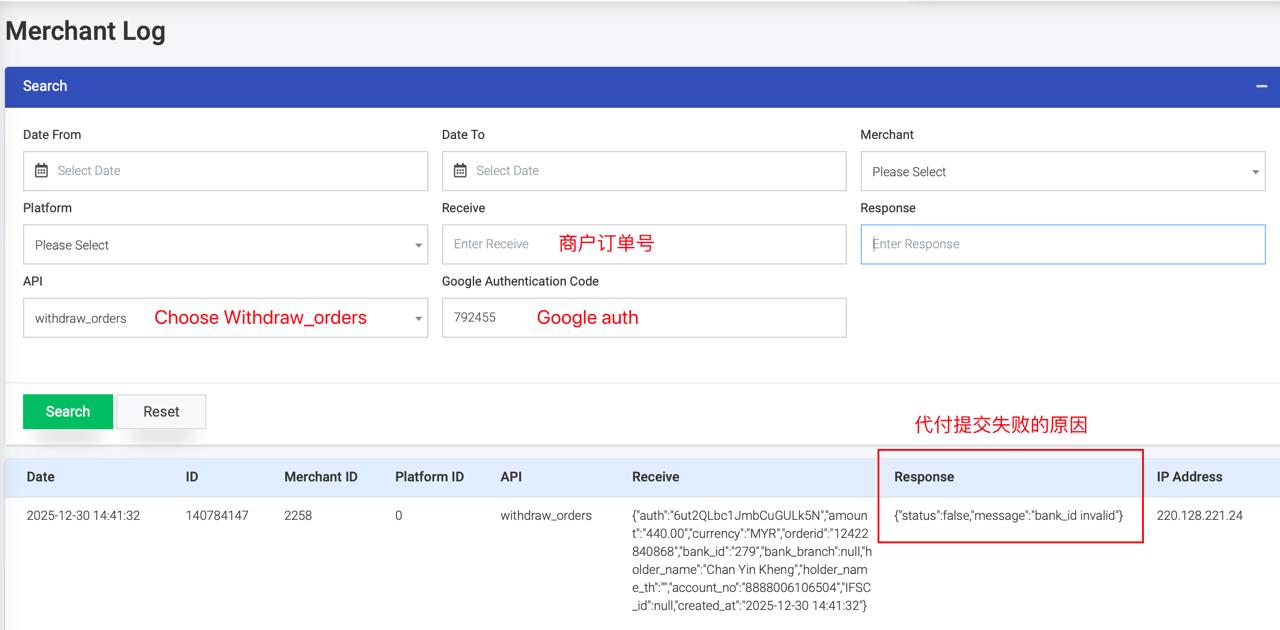
It may be a technical issue (e.g., data not transmitted).
Check FPAY – MERCHANT LOG to investigate the root cause.
Possible Responses to Merchant:
- Success – “Submitted successfully” (visible in PAYOUT LIST).
- False – Balance Not Enough → Directly inform the merchant.
- False – Daily Limit Reach → Check Merchant List → Bank Details → Payout Limit + 40%.→ Ask the merchant to resubmit.
- False – Order ID Exist→ Ask the merchant to resubmit.
- False – Maintenance On → “Payouts are under maintenance.”
- False – Params Incorrect → Request the merchant to resubmit.
- Not Found → “No submission record exists.”
Rerun Processing Flow
L
- Go to Fpay > Withdraw Robot (Rapidpay)
- Based on the error message to decide whether need to rerun or reject the payout
- Rerun Process
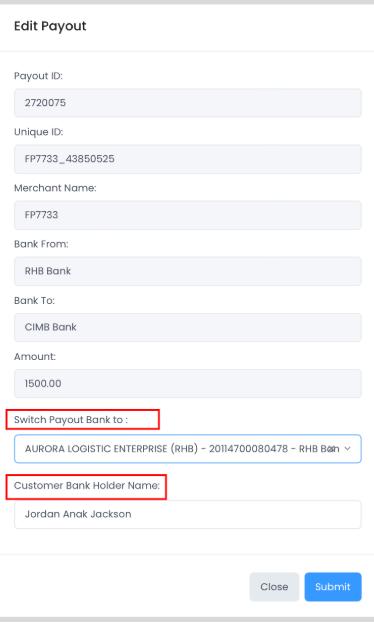
FPAY- Copy To Account Holder name
- Click Edit
- Paste the acc holder name > click submit
Rapidpay
- Rapidpay > Payout list (Robot)
- Copy Account Holder name
- Click 🖊️ > Paste the acc holder name > click submit
- If need to change bank rerun, switch Payout Bank to other bank for processing
- Reject Process (FPAY Side)
- Click Stop and submit
Payout Slip 代付水单
Step for get payout slip
Steps to Provide Payment Receipt to Merchant
- Obtain Order ID
Request the payout order number with the merchant.
- Retrieve Transaction
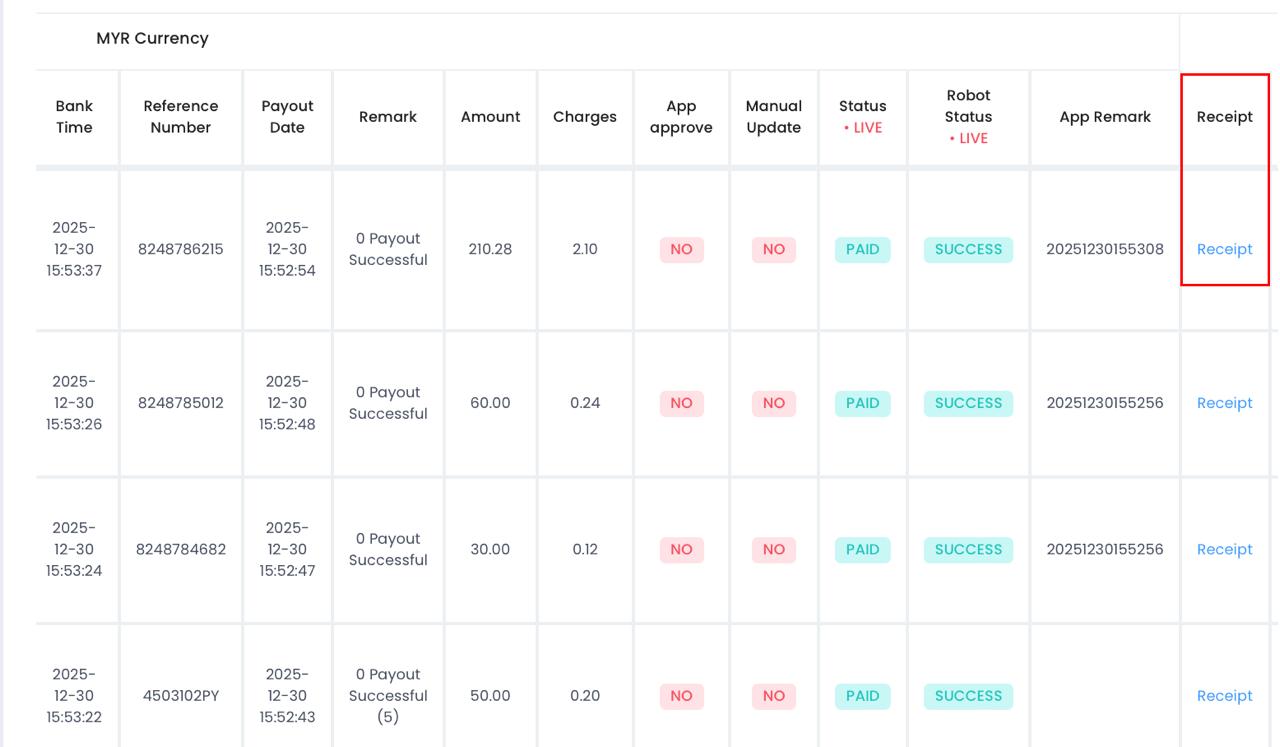
Go to FPay – Payout List, search for the transaction, and copy the ID.
- Access RapidPay
Paste the ID into RapidPay – Payout List (Robot) -.Unique ID
- Generate Receipt
Click on the “Receipt” button to generate the proof of transaction. Take a screenshot of the receipt and send it to the merchant.
Payout 冲正退回
Handling Procedure:
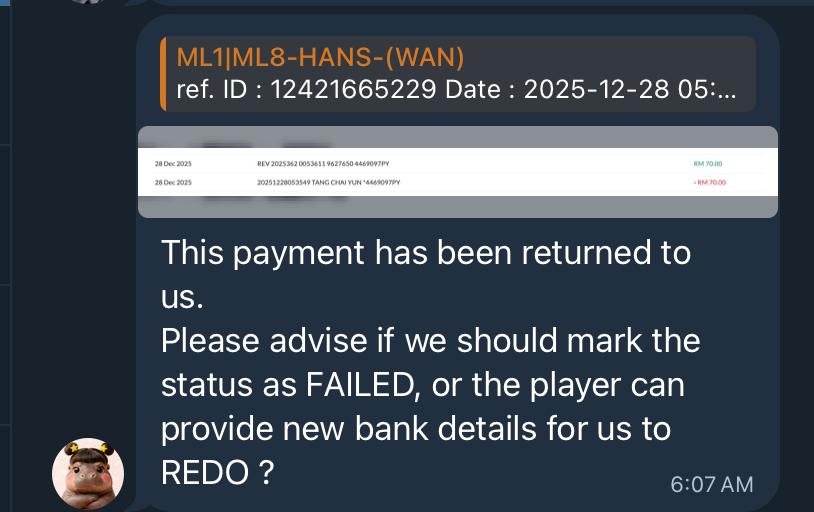
- Provide Proof to Merchant.
- Consult Merchant for Next Step.
Message Example: This payment has been returned to us. Please advise if we should mark the status as FAILED, or the player can provide new bank details for us to REDO ? 这笔款项已退回到我们这边。请问是要将状态标记为 FAILED,还是玩家会提供新的银行资料以便我们重新出款?
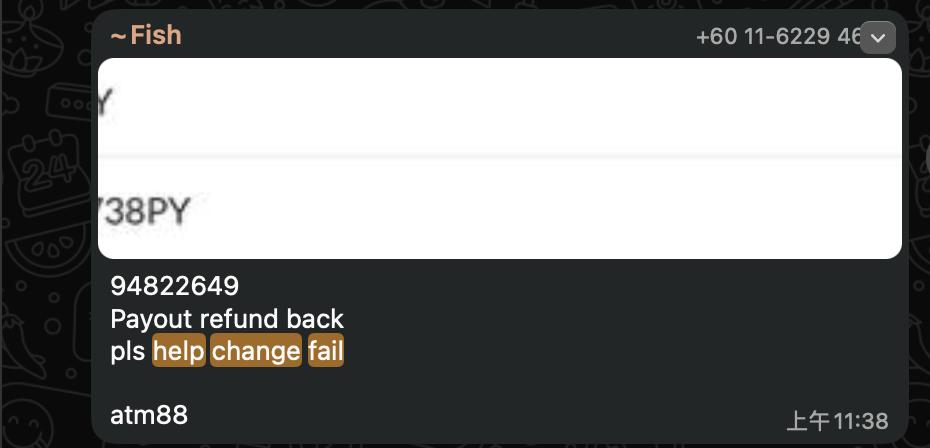
If merchant request to mark as Failed.
– Submit the request to RapidPay CS (WhatsApp) with:
- Screenshot
- PAYOUT ID
- Note: “Returned funds – changed to FAILED”
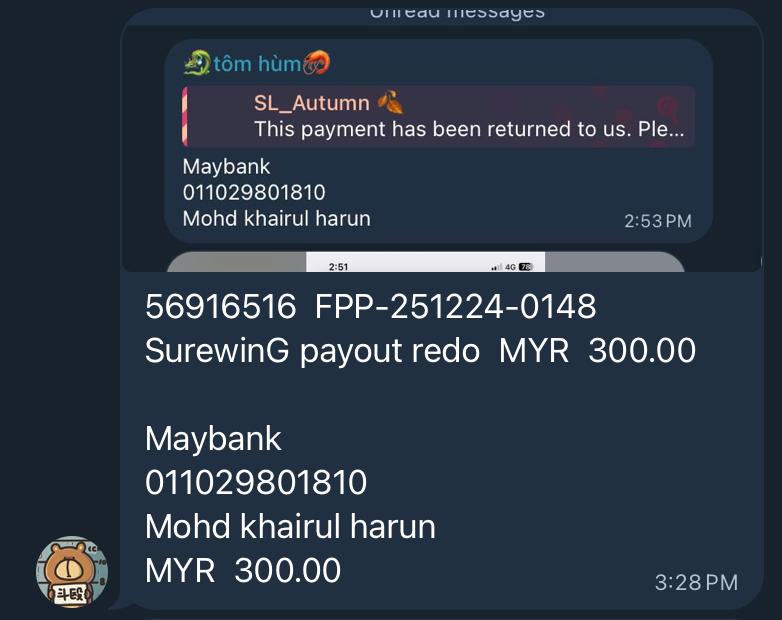
If merchant request to REDO.
– OPEN DEAL and notify CS OPT (Telegram) to reprocess.
⚠️ Critical Note: ”Only BANK ACCOUNT details accepted. TNG/DUITNOW accounts are NOT supported.”
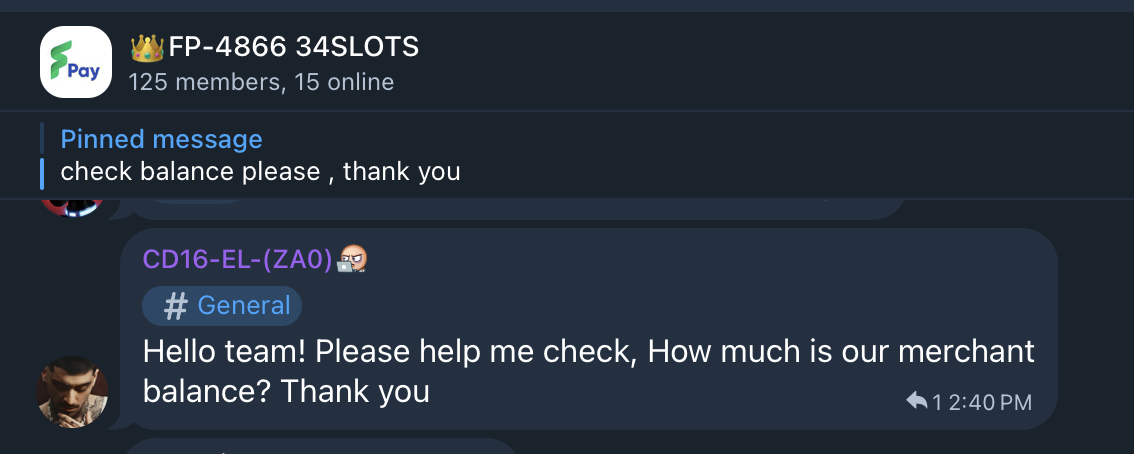
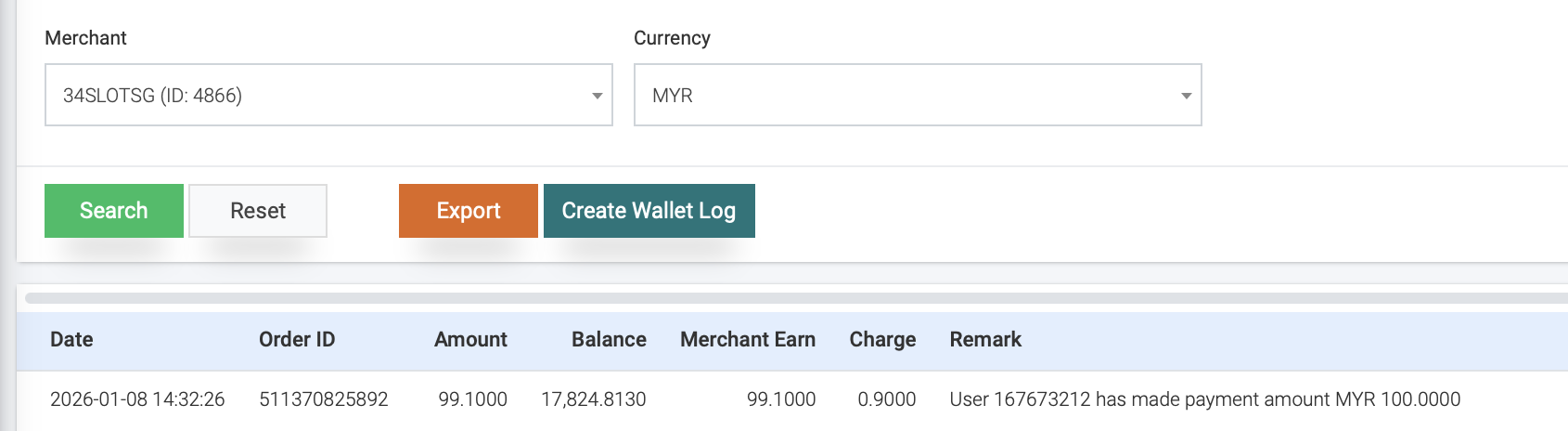
Check Merchant Balance
Top up
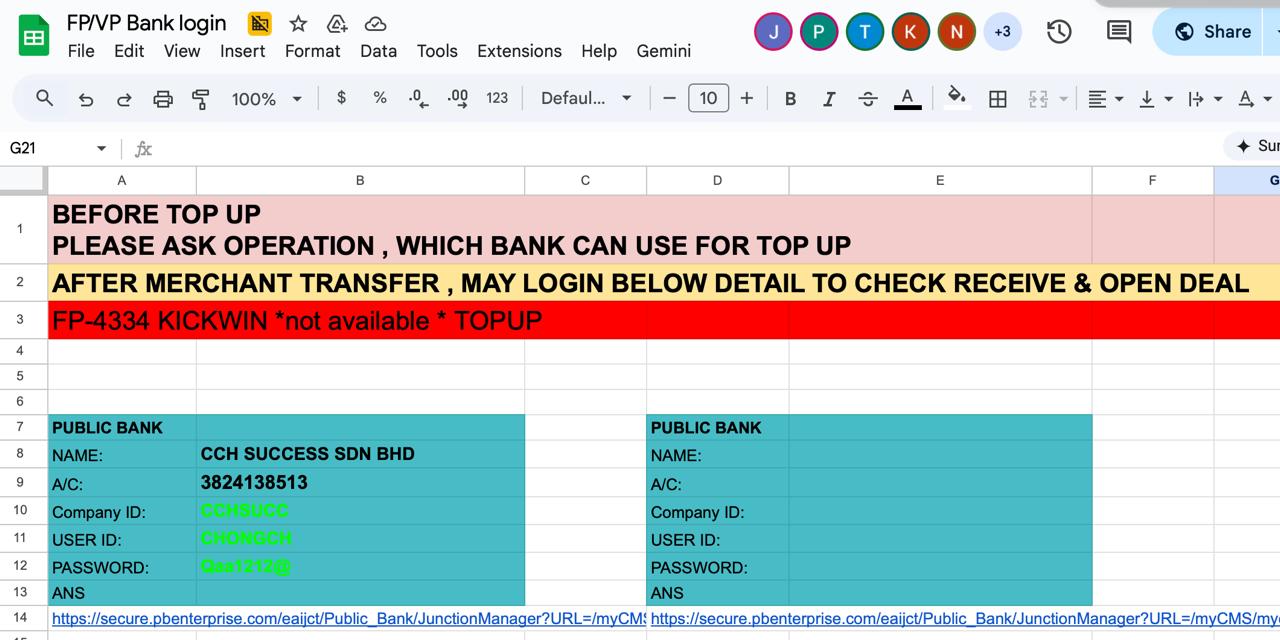
Handling Procedure
Top up MYR-MYR
1. Received request from merchant.
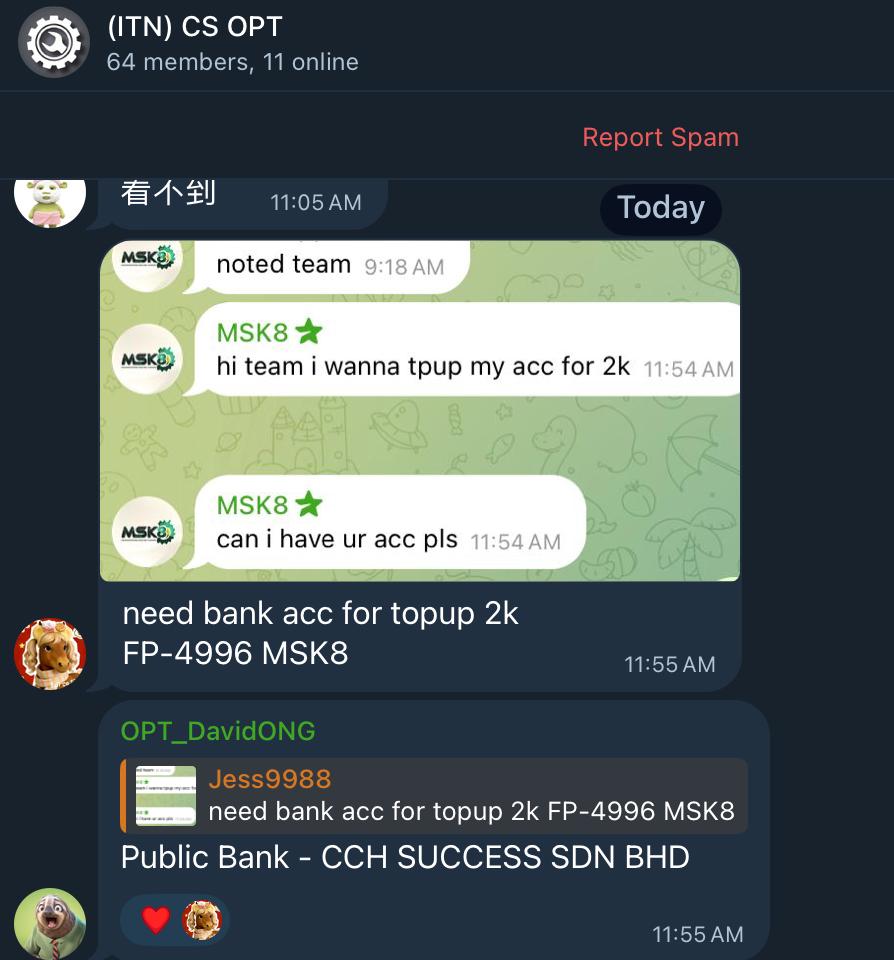
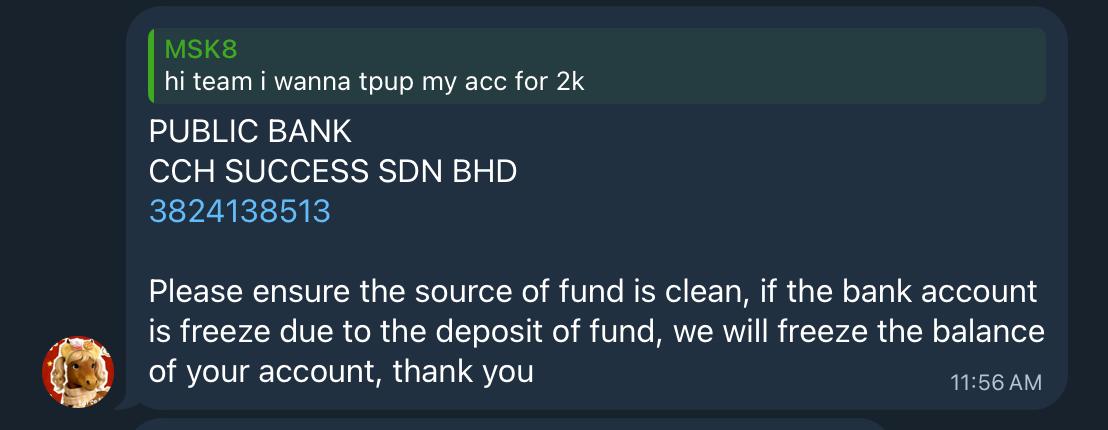
2. Check in Telegram – CS OPT , let OPT provide available account.
3. Share the detail back to merchant after OPT provided the Bank name. ( Bank details can get in Google sheet.
- Once the merchant has made the payment and provided the slip, please log in to the bank to verify the payment.
5. Once received the payment, CS need to OPEN DEAL at ALPHA , and add credit to in system (FPAY/RAPIDPAY)
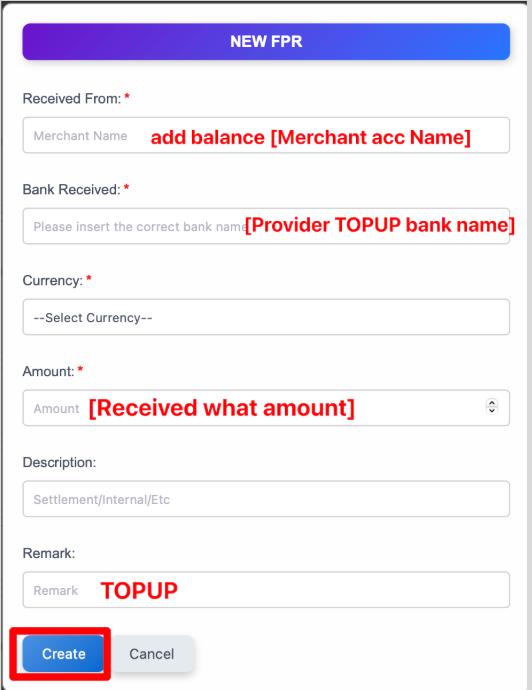
Top up (MYR to MYR)- Alpha Open deal
Alpha open deal.
- Navigate: CS+OP → Transaction List → New Request.
- Select the correct transaction type: –
- FPR: Received Payment.
Top up (MYR to MYR)- Add credit
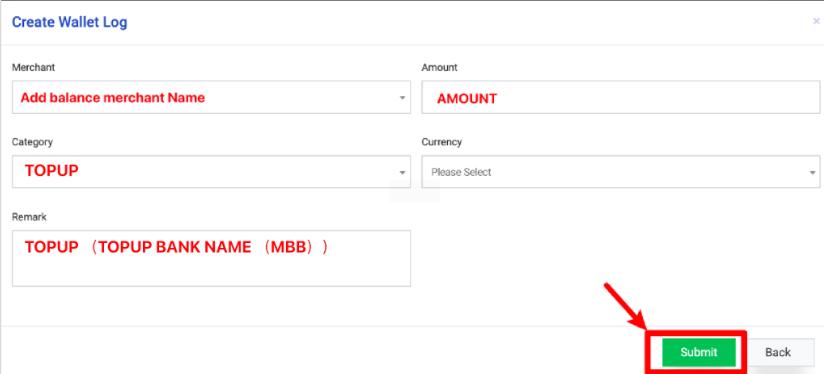
Fpay
- Wallet Log → Create wallet log
- After done add, back Wallet Log – search [To merchant name , currency]. Screenshot the result and notify the merchant with “DONE”
- After done add, back to Wallet Log – search [To merchant name , currency].
- Screenshot the result and provide to the merchant with status “Complete”.
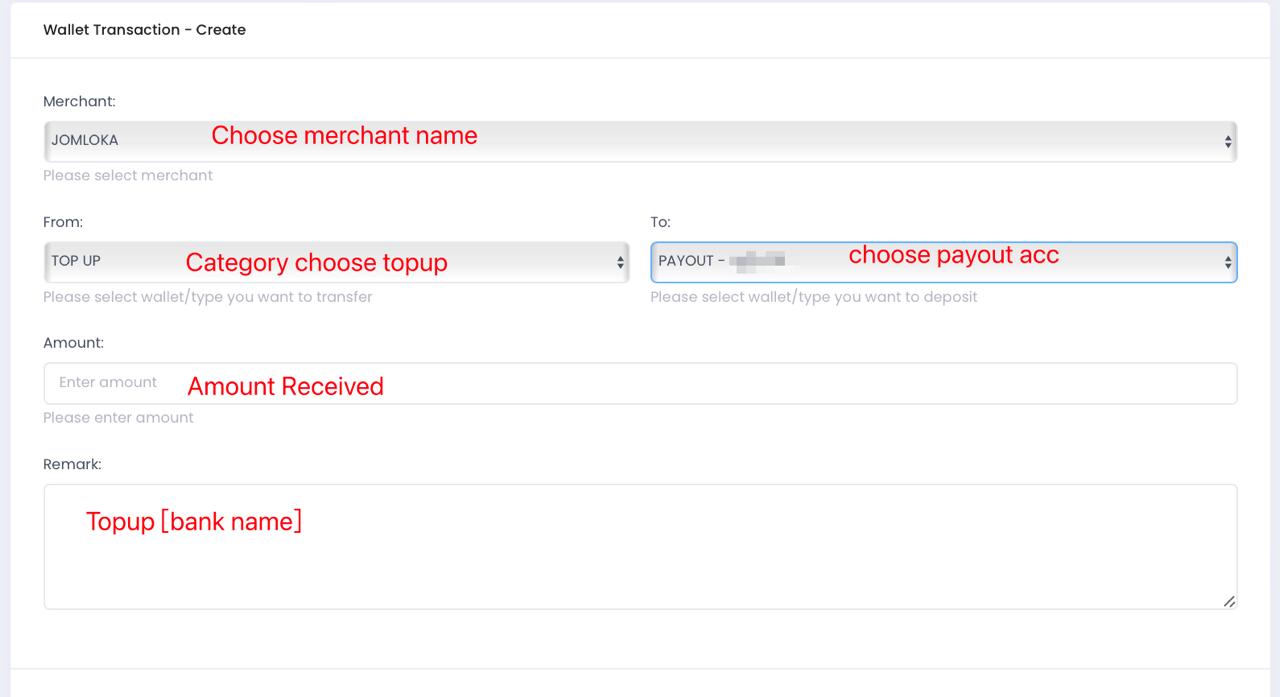
Rapidpay
- Wallet Transaction → New Record
- After done add, back Wallet Log – search [To merchant name , currency]. Screenshot the result and notify the merchant with “DONE”
- After done add, back to Wallet Log – search [To merchant name , currency].
- Screenshot the result and provide to the merchant with status “Complete”.
Transfer Wallet
Merchant submits a request in the backend and notifies the team via Telegram, specifying the requirement.
- Fpay to Fpay
- Rapidpay to Fpay
- Fpay to Rapidpay
- Rapidpay to Rapidpay
Backend Verification
Verify the submission in the System:
- RapidPay : Verify in Settlement List.
- FPAY / Vpay: Verify in Withdrawal List G.
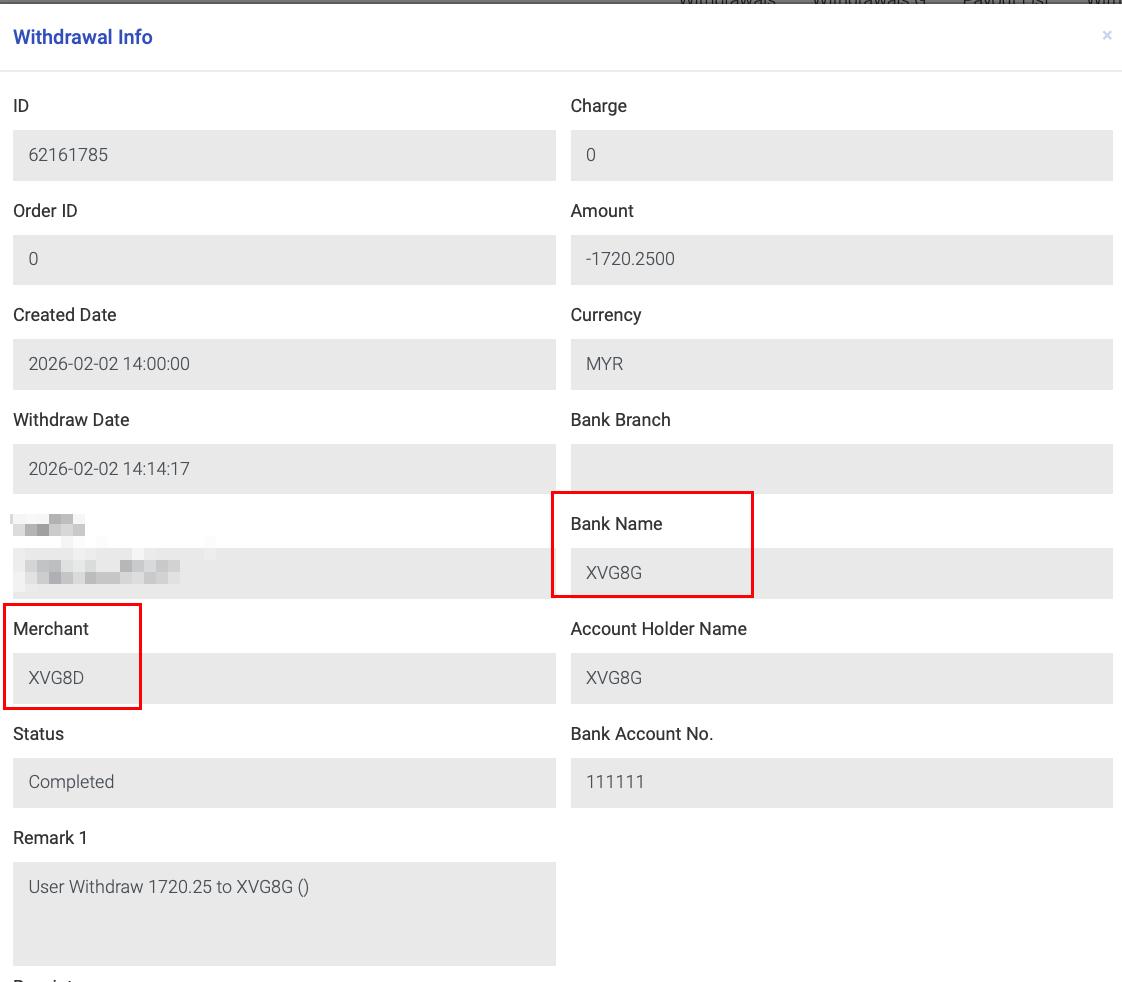
Transfer Wallet - Fpay to Fpay
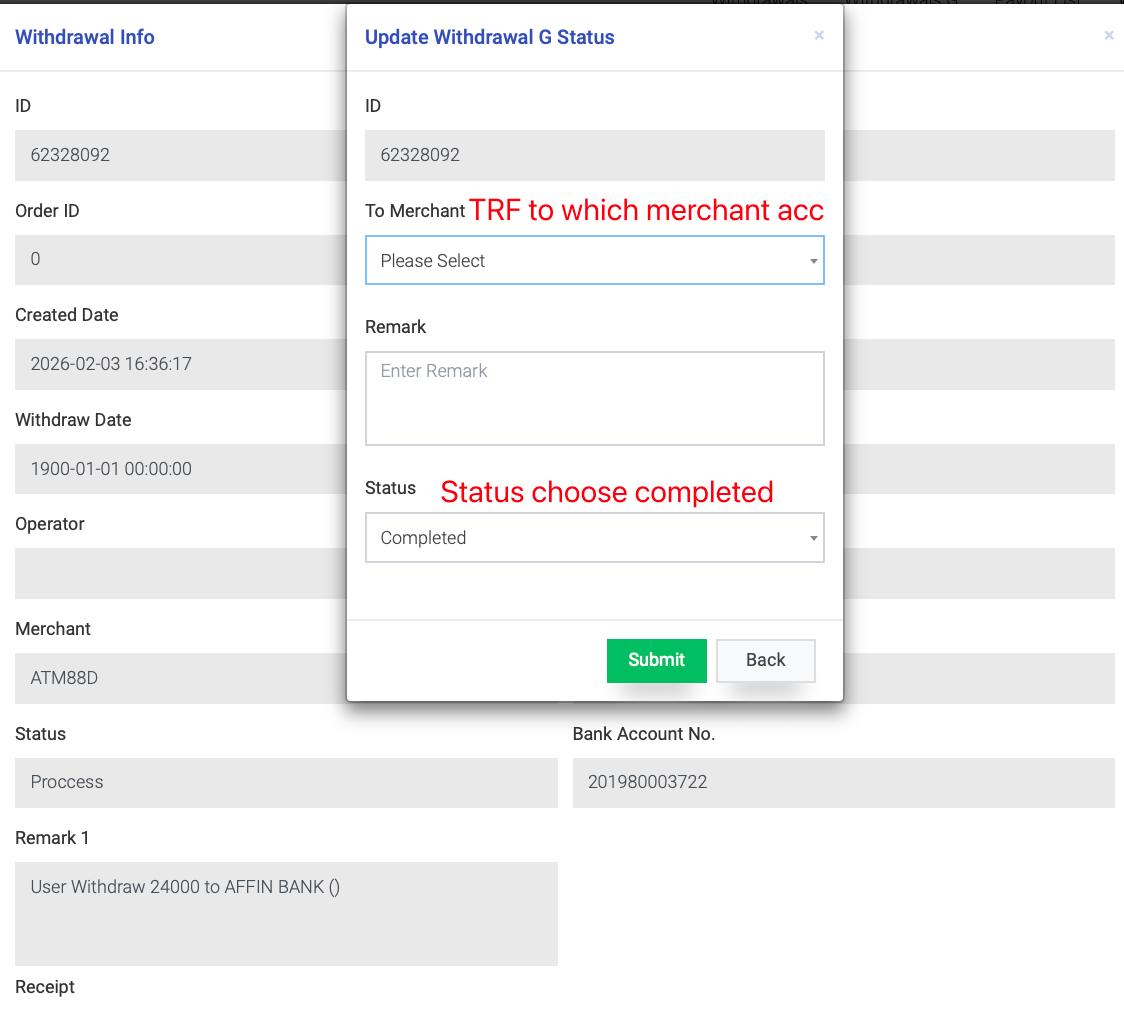
Fpay to Fpay
- FPAY → Withdrawal List G → Action → View → Update Status
- After done, Go to FPAY → Wallet Log → search [To merchant name , currency].
3. Screenshot the result and notify the merchant with status “Completed”
Transfer Wallet - Rapidpay to Fpay
Rapidpay to Fpay
- FPAY → Wallet Log → Create Wallet Log → Update all the detail.
- After done, Go to FPAY → Wallet Log → search { To merchant name , currency ].
- Screenshot the result and notify the merchant with status “Completed”
Back to RAPIDPAY → Settlement LIST → Action → Click ✅
Transfer Wallet - Fpay to Rapidpay
Fpay to Rapidpay
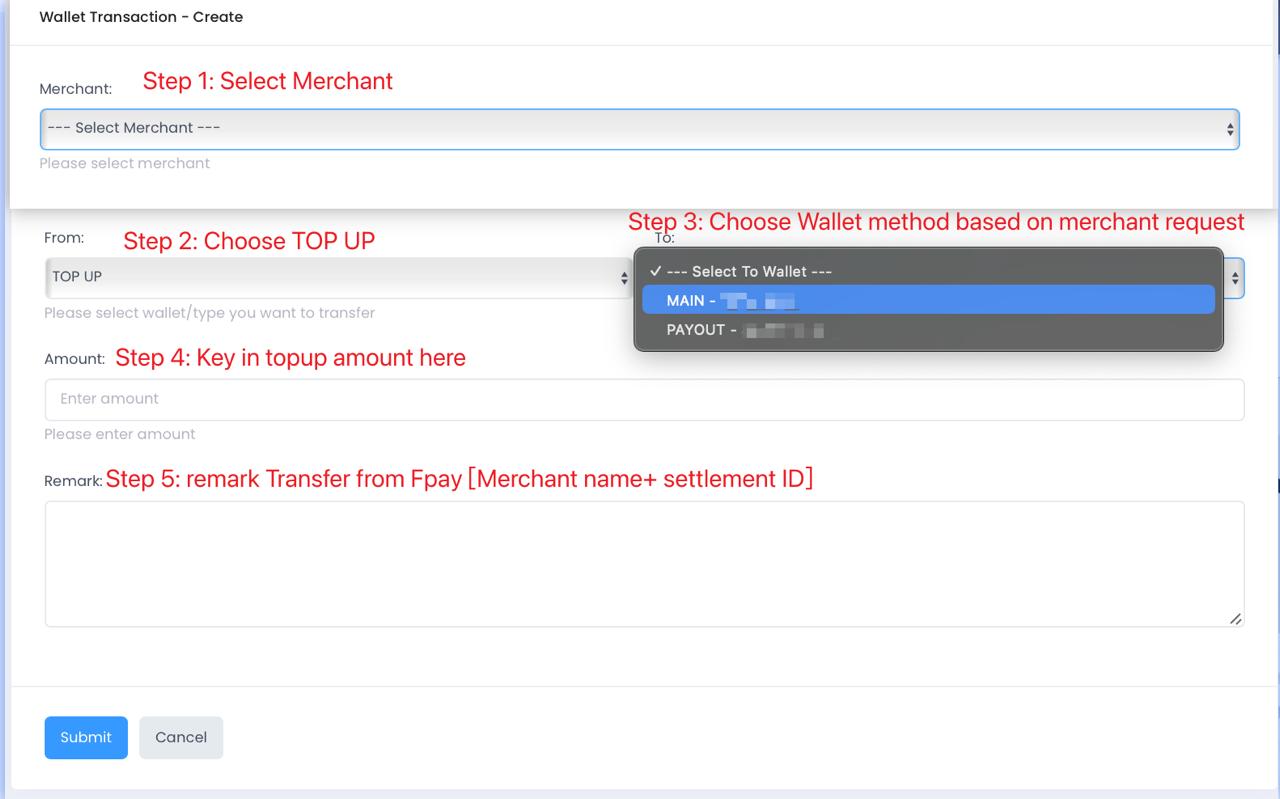
- RAPIDPAY → Wallet Transaction → New record → To Merchant → Top Up
- Follow the merchant request to select [ Wallet Method ]
- After done, Go to RAPIIDPAY → Merchant Wallet → fill in [ To Merchant Name] .
- Screenshot the result and notify the merchant with status “Completed”
- Back to FPAY → Withdrawal List G → View → Update Status → Change to “Complete”
Transfer Wallet - Rapidpay to Rapidpay Merchant can Self proceed
Rapidpay to Rapidpay
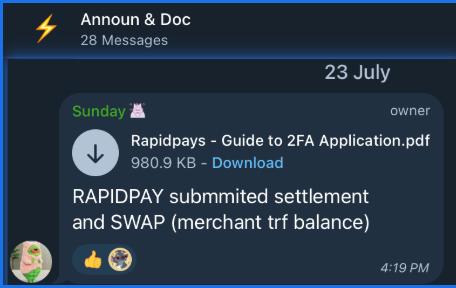
- Go to Fpay CS > Announ and Docs > Get the file (Rapidpays – Guide to 2FA Application) and send to merchant
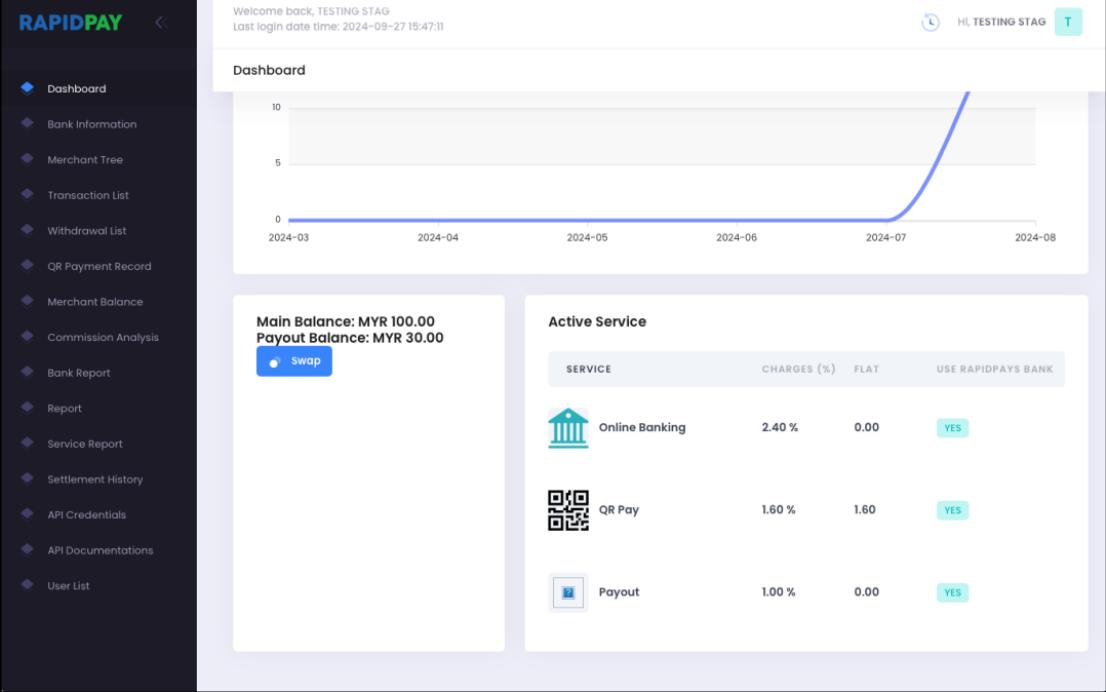
- Mention to merchant refer to SWAP function for transferring the balance to their payout acc
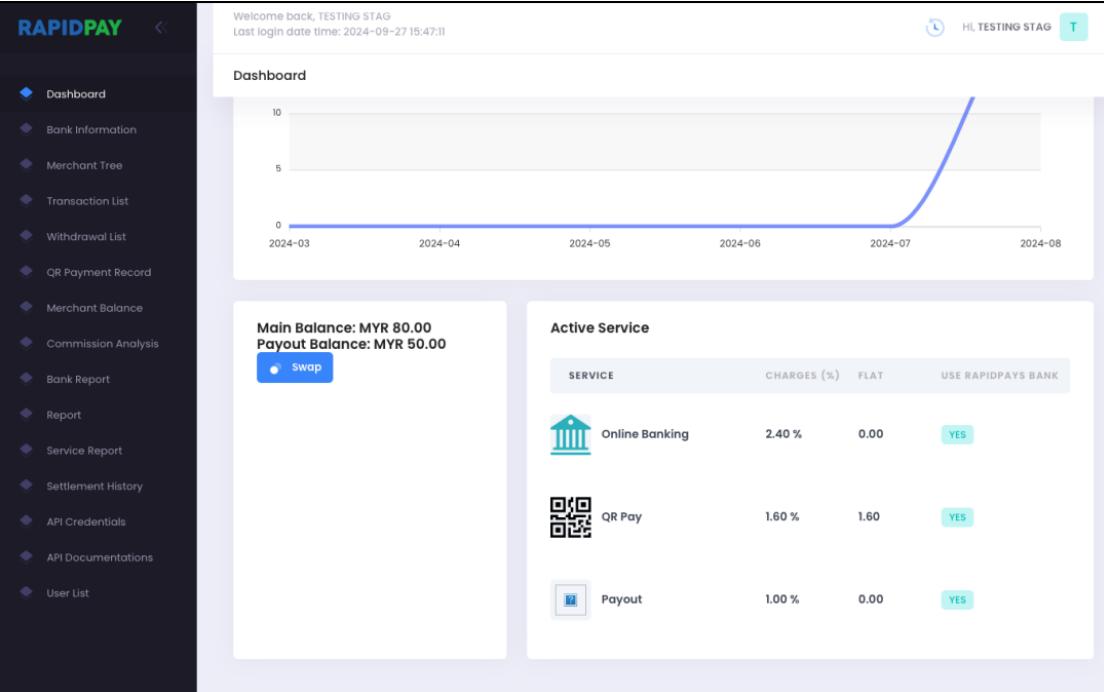
1. Login to Rapidpays backend at https://merchant.globalpayshop.com/. From dashboard, there are two balances showing: Main Balance (balance from deposit and can be proceed to settlement) & Payout Balance (balance only shown if you’re payout service subscriber)
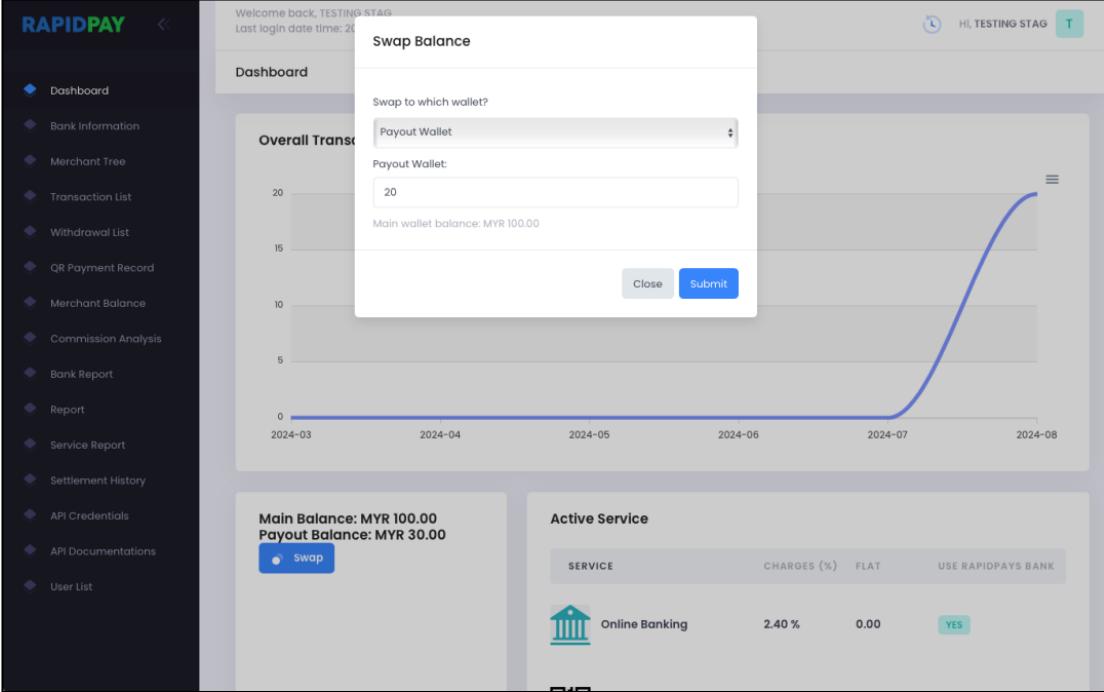
- For payout service subscriber, balance swap can be performed by clicking “Swap”. Select the destination wallet from the list and the balance available to swap will be showing below the space for inserting amount. Proceed with clicking “Submit”.
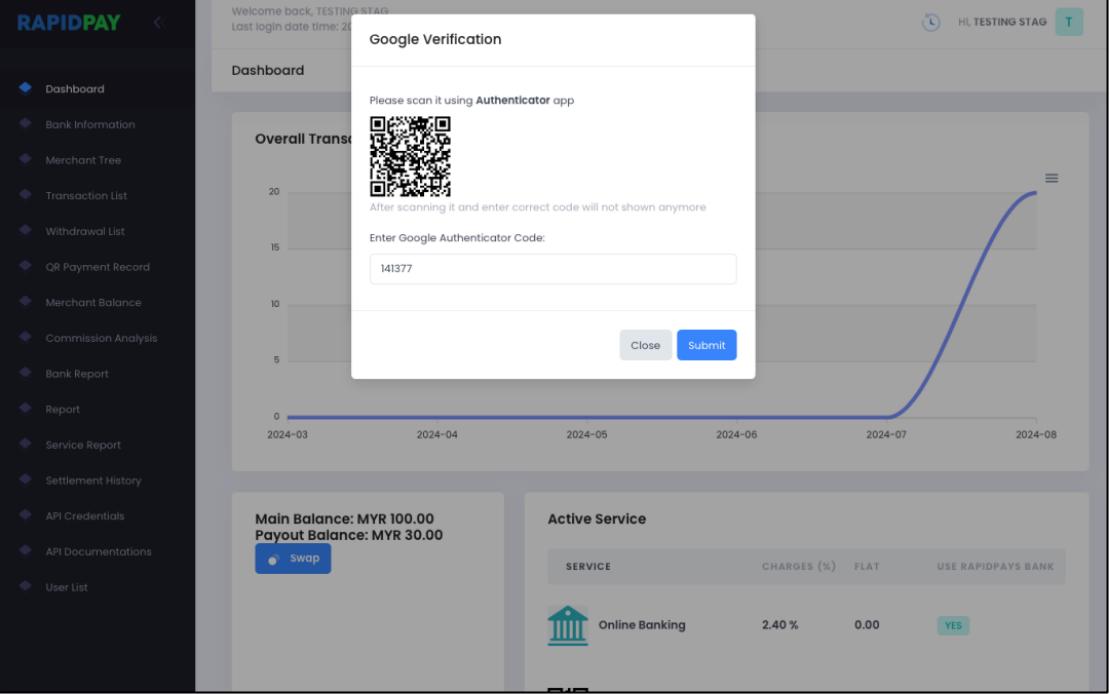
3. For First Time performing “Swap” or “Request Settlement”, the Google Authenticator code to bind on your phone will be showing as below. Scan the code using your Google Authenticator app, enter the code showing after the code added to your app. Click “Submit”.
4. The balance successfully transfer to another wallet as shown below.
Manual Payout
Manual Payout Processing Flow
(For amount exceeding MYR10,000)
Purpose: Manually processing payouts above MYR 10,000 helps reduce the workload on the Bot Payout system.
- Check & Identify Payouts
- Go to FP-Withdrawal Robot (RAPIDPAY).
- Payouts exceeding MYR 10,000 will not be auto-matched by the bot.
- Copy the Transaction ID from the list.
- Check in PAYOUT LIST
- Paste the ID in PAYOUT LIST.
- Check Transaction Details
- Create Deal in Alpha System
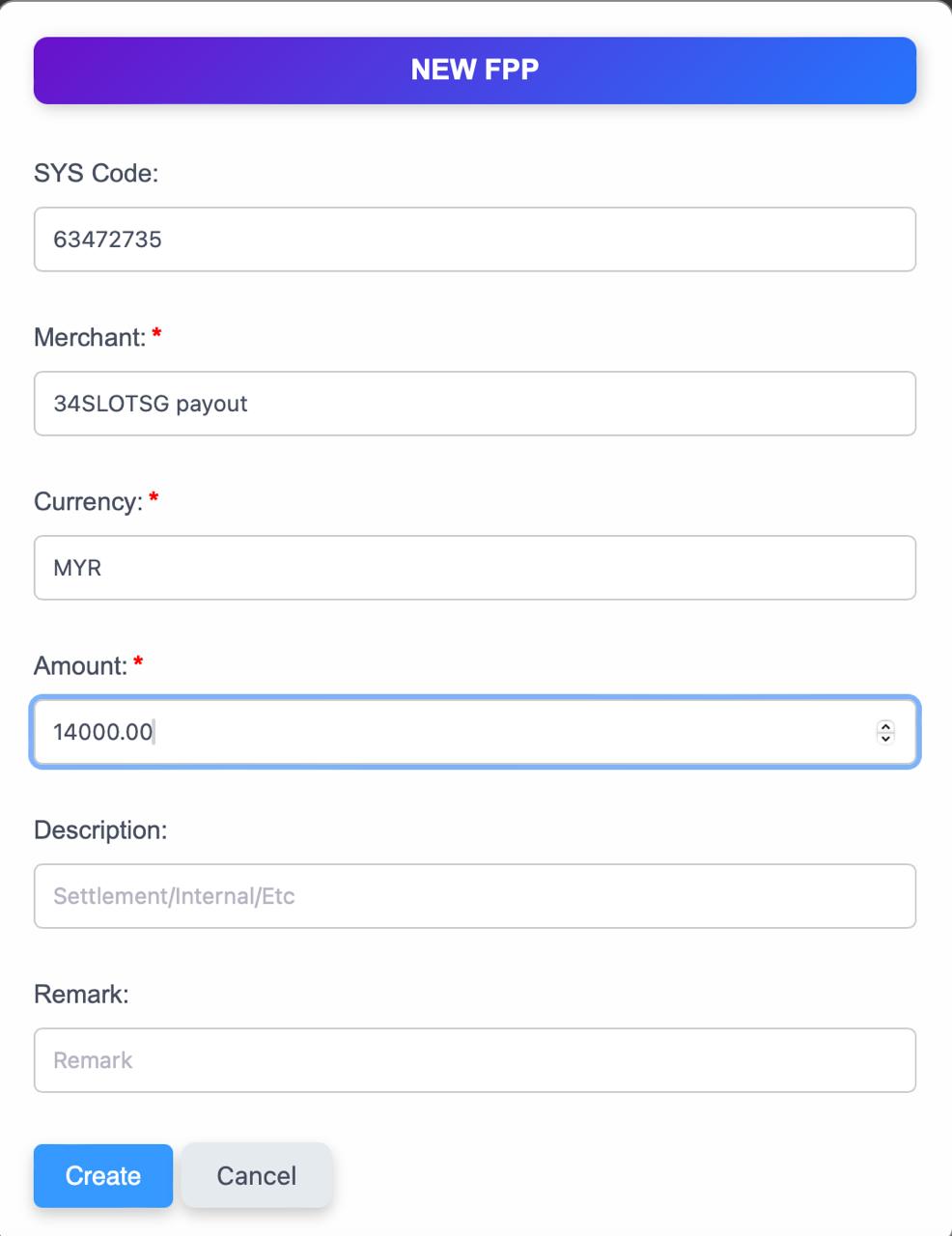
- CS + OP → Transaction List → New Request → FPP → Fill in the detail
- ID
- Merchant (PAYOUT)
- Currency
- Amount
- Forward the request to Telegram group – ‼️🔝(ITN) FP/VP VIP STM & MANUAL PAYOUT with Payout screenshot , Deal information and Payout details
Manual Payout Processing Flow (For amount exceeding MYR 10000)
Follow Up Action
✅ If Completed by OPT Team:
- Copy the ID → Go to RAPIDPAY – MANUAL PAYOUT LIST.
- Paste in Unique ID → Click ☑️ (Approve).
❌ If Rejected by OPT Team (Unable to Process):
- Copy the ID → Go to RAPIDPAY – MANUAL PAYOUT LIST.
- Paste in Unique ID → Click (Reject).
⚠️ Special note for TNG Bank Payout
OPT cannot manual process TNG transactions , for any transaction that above MYR 8000 in Withdrawal Robot
- Click [ EDIT ] on the transaction.
- Manually select any MYR bank to process “ instead “.
Comments are closed