
THB
THB - BITPAYZ (Deposit)
- Send the slip to > (<THB> Bitpayz – James/ Fpay CS Group) 🔗https://t.me/+v5woFLW5GURkZGY1
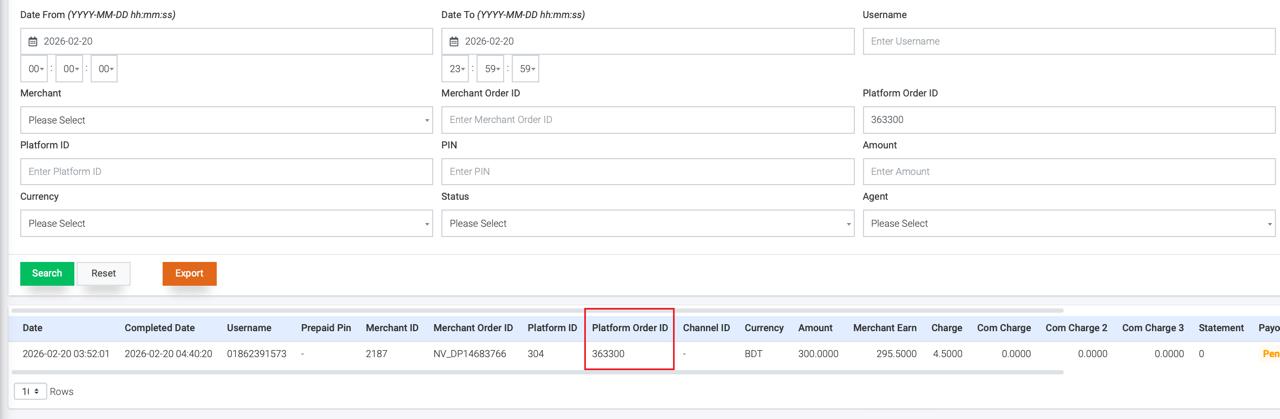
- PG Support Team will check the transaction and provide the Merchant Reference: FPAY → Order List → Platform Order ID
- Paste it into BO → Platform Order ID
- Copy the Merchant Order ID and send it to the merchant
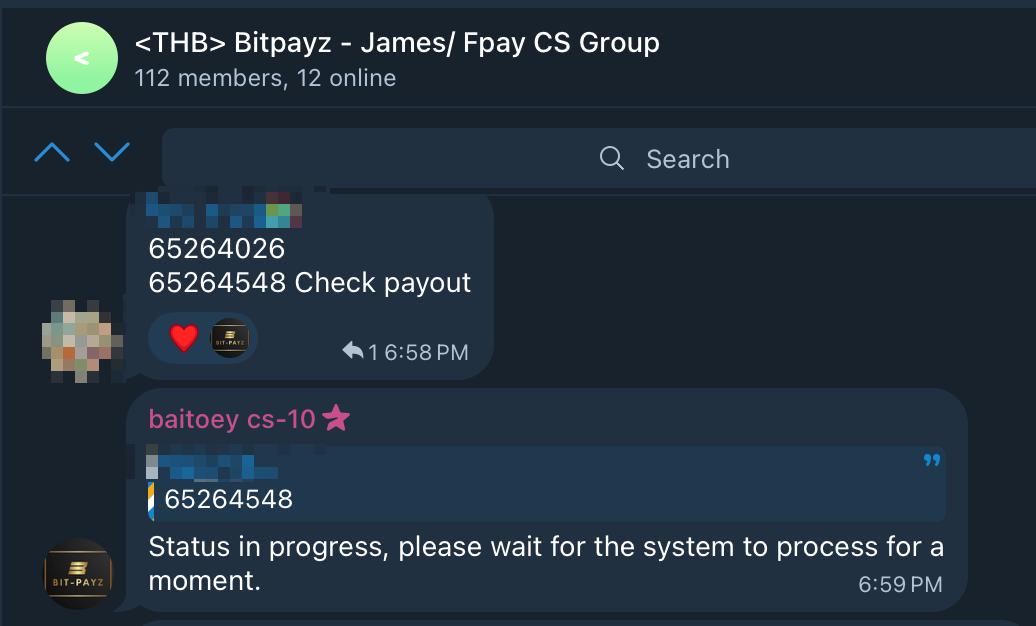
THB - BITPAYZ (Payout)
- Merchant provided Payout Order Number.
- Use the Payout Order Number locate Order in FPAY System → Payout List → Merchant Order ID → Get the ID
- Provide to <THB> Bitpayz – James/ Fpay CS Group , and the PIC will assist accordingly.
INR
INR - OXPAY (Deposit)
- Slip+platform order id send to <INR> Oxpay x Fpay 4.5+2.5
- PG support team will verify the transaction
- Once RECEIVED, PG CS will assign the payment.
- Once PG done updated, refresh and check in FP BO whether is it done
- Copy the merchant order ID and inform merchant the payment done
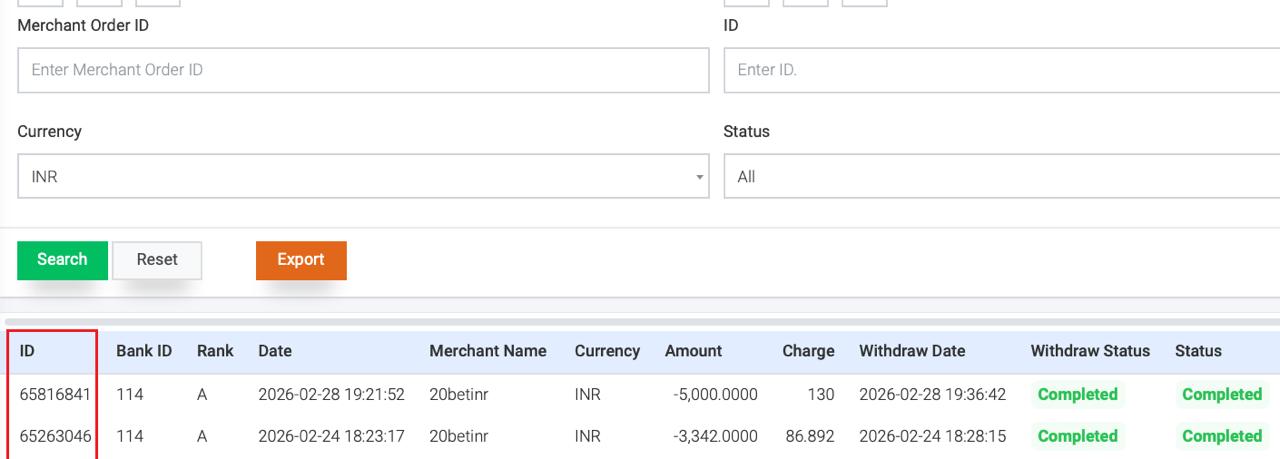
INR - OXPAY (Payout)
- Merchant Provides Payout Order Number
- Go to Fpay Payout List > paste the Merchant Order ID> get the ID
- Send it to PG CS for checking
Merchant request to reject payout
- Confirm with PG CS whether their side received the request
- If received, let them reject on their side
- If received, let them reject on their side
- If no receive, we process manual reject on our side
- Go to Fpay Payout List > click View > update status > Status change to rejected > submit
BDT
BDT - AXISPAY (Deposit)
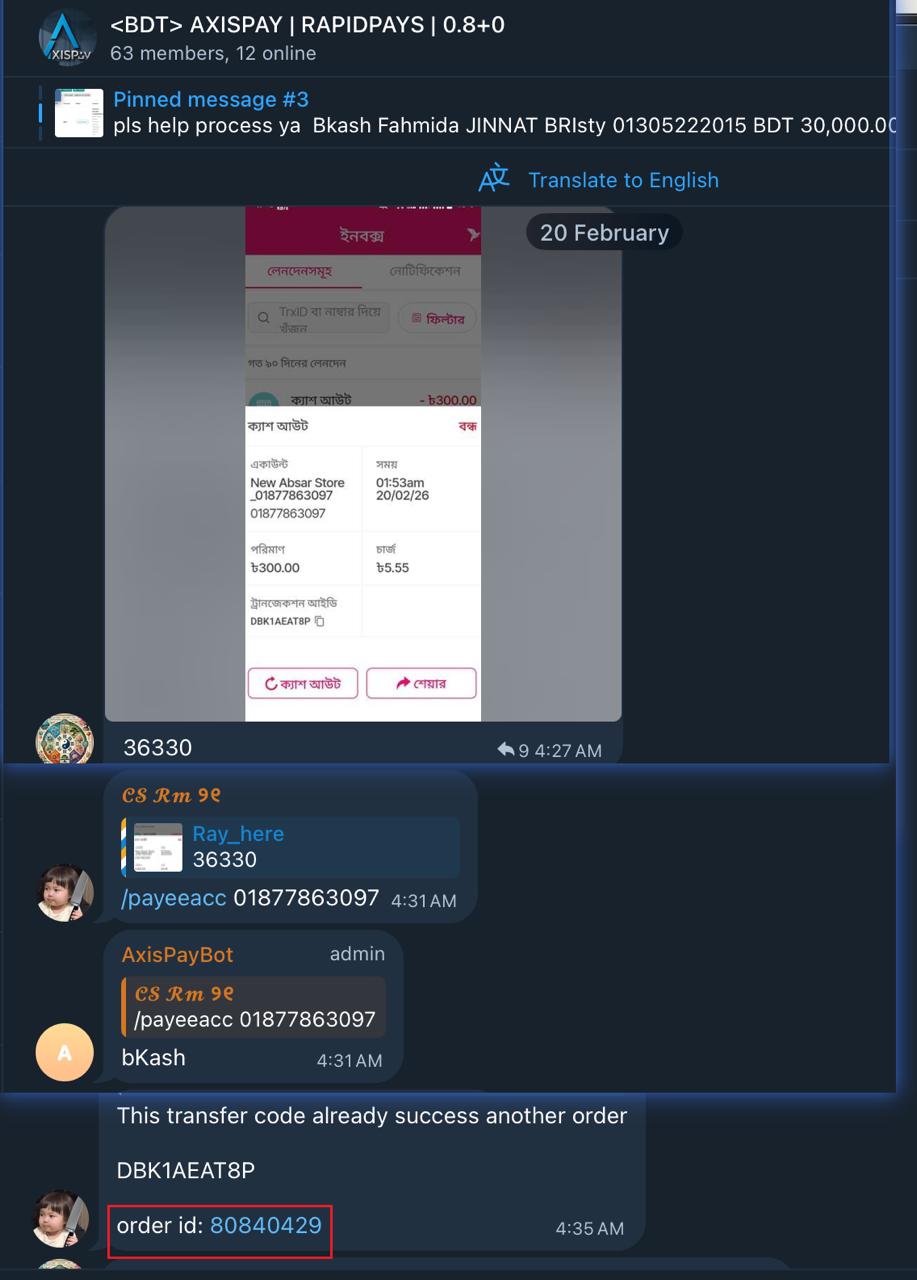
- Slip send to <BDT> AXISPAY | RAPIDPAYS | 0.8+0 , Gateway support team will check the transaction.
- Once received , gateway will provide the Transaction Reference.
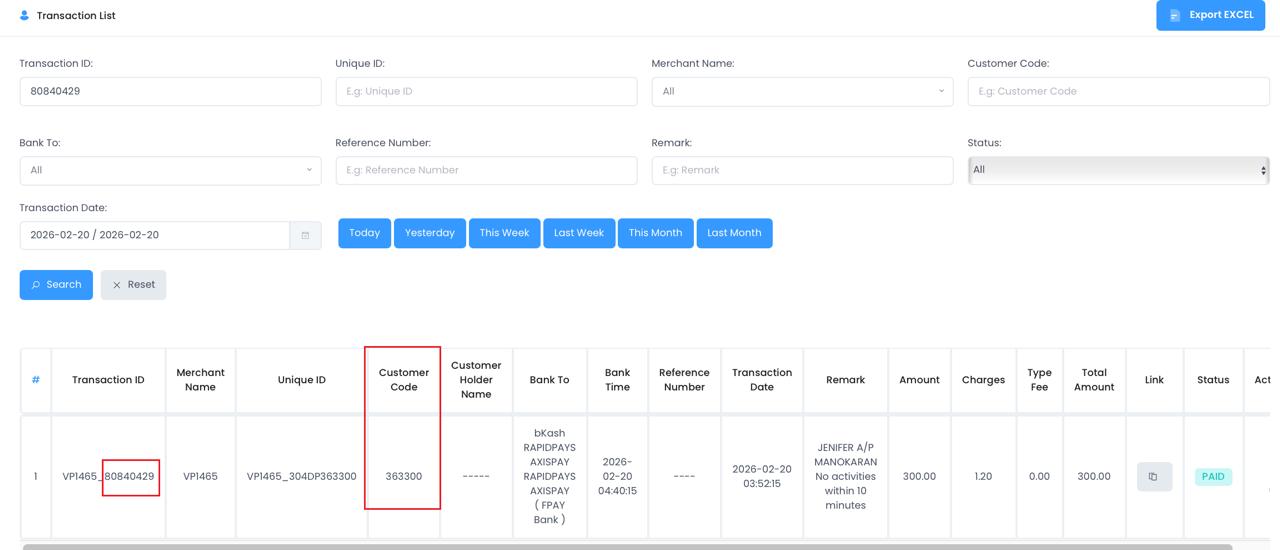
- Get the transaction reference > Rapidpay transaction list > paste in transaction id > get the customer code
- Go to Fpay order list > platform order id > paste the customer code
- Copy the Merchant Order ID to the merchant.
BDT - AXISPAY (Payout)
- Merchant submit request and provided Payout Order Number.
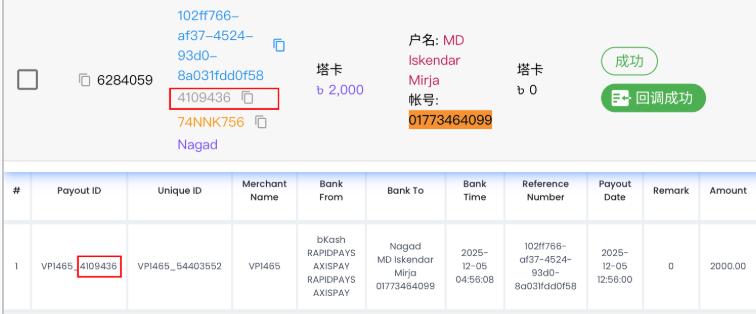
- Copy the Order Number and paste it into the FPAY – Payout List search field (searchable under the Merchant Order ID/ID column) > Get the ID
- Go to Rapidpay payout list > paste at the Unique ID column > get the payout ID and send it to PG GRP for processing/verification
- Resolution for Unreceived Requests, If gateway support team confirms non-receipt of the payout request:
- Navigate to the transaction in Rapidpay – Payout List.
- Click the button of 🗑️to reject it
USDT
USDT - TRONUMX (Deposit)
- Manually check via Gateway. Log in to the Payment Gateway (PG) Admin Portal → Deposit History.
- Copy the Slip Transaction ID → use Command + F to search for the transaction in the deposit list.
If transaction found :
- Copy the “To Address Label” (format: XXXXXX/ID). Extract the ID after the slash (/).
- Paste this ID into the BO System under: Platform Order ID (to verify/update status).
If transaction not found :
- Slip send to Telegram group <USDT-TRC20> Tronumx x Fpay . (Include Transaction ID)
USDT - TRONUMX (Payout)
- Manually check via Gateway. Log in to the Payment Gateway (PG) Admin Portal → Transfer History.
- Copy ID at Payout list→ use Command + F to search for the transaction.
Note: Payout exceed amount 1000U need to login gateway BO and manual approve
If transaction not found :
- Send ID to Telegram group <USDT-TRC20> Tronumx x Fpay for checking status

SGD
SGD - TRUSTPAY (Deposit)
- Slip send to 【578】 FPAY x TrustPay🇸🇬 , Gateway support team will check the transaction.
- Once received , need to provide the Transaction Reference.
Ways to get the transaction Reference
- Fpay → Order List → Platform Order ID
- Login gateway BO→ CommandF and search platform order ID → get the full transaction reference
- After gateway support team update, use back the same Platform order ID to verify in system.
- Copy the Merchant Order ID to the merchant.
SGD - TRUSTPAY (Payout)
- Merchant submit request and provided Payout Order Number.
- Copy the Order Number and paste it into the FPAY – Payout List search field (searchable under the Merchant Order ID/ID column).
- Get the payout reference number in gateway BO and provide to PG CS for checking status
- Resolution for Unreceived Requests, If gateway support team confirms non-receipt of the payout request:
- Navigate to the transaction in FPAY – Payout List.
- Select ACTION > VIEW > CHANGE STATUS.
- Update the status to “REJECTED“.
How to get the Full payout reference number
Go to FPay Payout list > Get ID > Go to Trustpay BO > Payout > Use Command + F to search for the transaction

Steps to get receipt
- Found the payout in Trustpay BO
- Click the icon of 📷
- Get the receipt,screenshot and send it to merchant

PKR
PKR - OKPAY (Deposit)
- Slip send to 【okpay-2328】巴基斯坦EP4.5%+JZ3.5% 代付2 fpay 四方 , Gateway support team will check the transaction.
- Once received , need to provide the Transaction Reference.
Ways to get the transaction Reference
- Fpay → Order List → Platform Order ID
- Login gateway BO→ CommandF and search platform order ID → get the full transaction reference
- After gateway support team update, use back the same Platform order ID to verify in system.
- Copy the Merchant Order ID to the merchant.

PKR - OKPAY (Payout)
- Merchant submit request and provided Payout Order Number.
- Copy the Order Number and paste it into the FPAY – Payout List search field (searchable under the Merchant Order ID/ID column).
- Send the payout order ID to PG CS for checking
Ways to get the payout order ID
- Fpay → Order List → Platform Order ID
- Login gateway BO→ CommandF and search platform order ID at 代付记录→ get the full payout order id
- Resolution for Unreceived Requests, If gateway support team confirms non-receipt of the payout request:
- Navigate to the transaction in FPAY – Payout List.
- Select ACTION > VIEW > CHANGE STATUS.
- Update the status to “REJECTED“.
PHP
PHP - GALAXY (Deposit)
- Slip send to <PHP> Galaxy_gcash x fpay (3.0+0 四方) , Gateway support team will check the transaction.
- Once received, CS provide the Order ID to Gateway support team to update accordingly.
- Once updated , check again in Fpay Order List to confirm the transaction.
- Send the detail to merchant .
IDR
IDR - PAYPRO (Deposit)
- Slip send to Telegram group (C108) Paypro|Fpay-IDR Gateway support team will check the transaction.
- Once received, CS will provide the Order ID.
- Copy the Order ID and paste it into BO → Platform Order ID , and verify all the detail.
- Copy the merchant Order ID to merchant .
Note :
Sometimes PG BO will showing status Approved , but Fpay BO still showing pending , CS can ask gateway support to try Recallback.
If the status still shows pending after several recallback attempts, please consult your supervisor for processing.
IDR - PAYPRO (Payout)
- Merchant submit request and provided Payout Order Number.
- Copy the Order Number and paste it into the FPAY – Payout List search field (searchable under the Merchant Order ID/ID column).
- Found the matched ORder and access to Payment Gateway Portal. (At Google Sheet [GATEWAY LOGIN – IDR – PAYPRO)
- Payment Gateway Verification process.
A. Use Command+F (Find function)
- Search using the BO Reference ID
- Locate the complete PG Payout ID
- Submit the full PG Payout ID to Telegram (C108) Paypro|Fpay-IDR , and request PG CS to verify the transaction.
VND
VND - Honorpay (Deposit)
- Slip send to Telegram group (VND Honorpay Fpay客服查单群) Gateway support team will check the transaction.
- PG support team will verify the transaction
- Once received , need to provide the Transaction Reference. (Fpay → Order List → Platform Order ID)
- Access to PG portal (remember to open personal VPN before login)
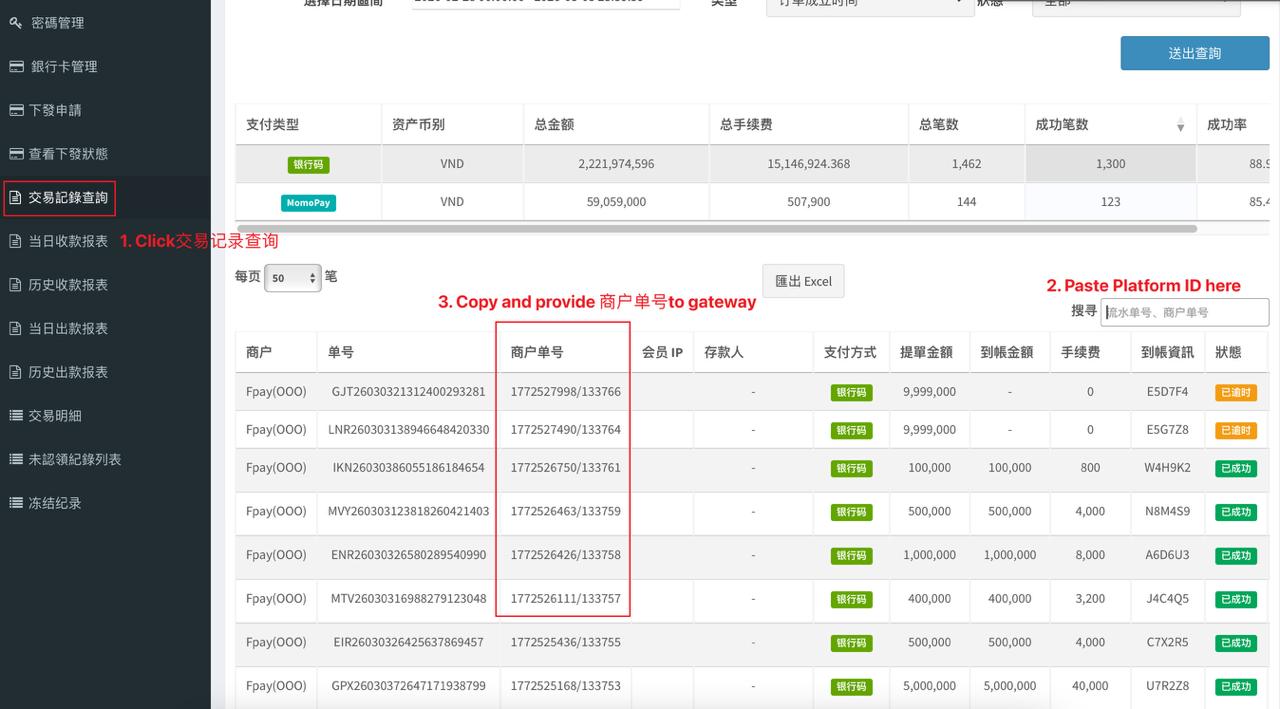
- Navigate to:
Collection Records (交易记录查询) > Search for Transaction
- Paste the Platform Order ID to locate the deposit.
- Copy the Merchant Order Number(商户单号) from the record > Provide to PG support team
- Final Confirmation & Assignment
- Go back to Fpay order list and make sure the transaction status is completed
- Verify that all details match.
- Copy the Merchant Order ID and share it with the merchant for reference.
MMK
MMK - WAVEPAY (Deposit)
- Verify the transaction details in the Rapidpay system → QR Payment Record .
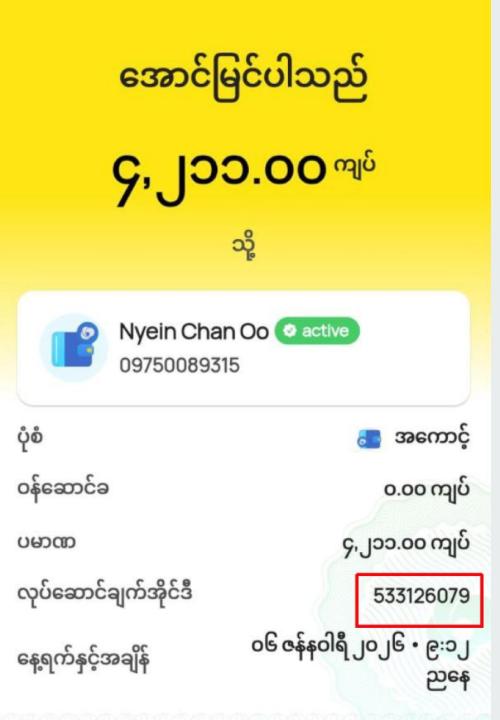
- Check by Slip Reference (RFF)
- Check the transaction status:
Assigned
- Click on the Transaction ID.
- Compare the information and confirm that it matches.
- Copy and send the transaction id and customer code to merchant and informed transaction done
Not Assigned
- Confirm received payment at QR payment record by searching slip reference number
- Locate the transaction ID by searching the customer code provided by merchantat RP transaction list
- Assign payment at QR payment record to resolve issue
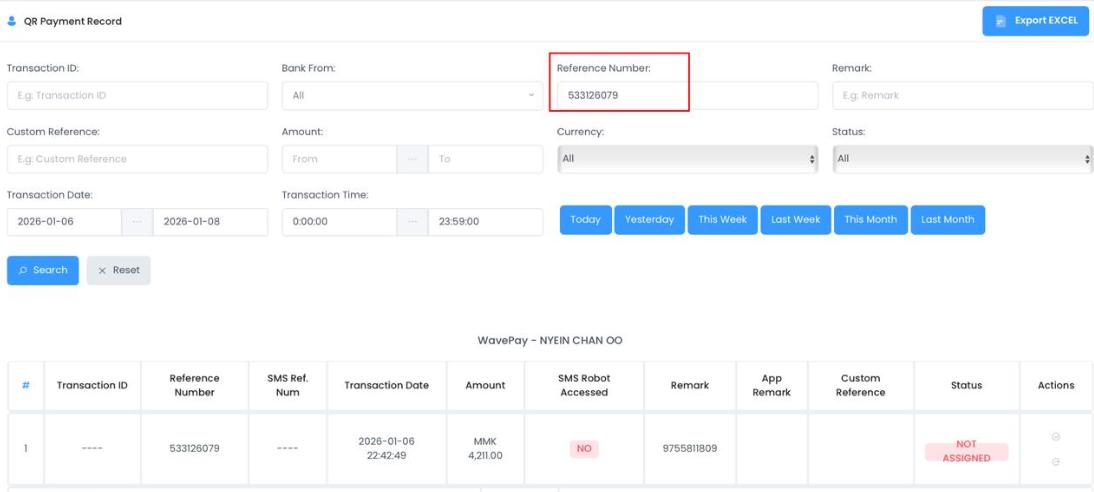
Note:If not found in QR payment record, can reconfirm with merchant whether received payment. If merchant confirm received, can direct manual callback the order id provided by merchant
Comments are closed