Shift Leader SOP

Latest Comments

  1. CS Team
Manual add back credit

Steps of manual add back credit (MYR) 

  1. Confirm Payment Received
    – Check the backend to ensure the payment has been successfully received.

  2. Refund Button Action
    – Click the “Refunded” button in the backend to avoid duplicate processing.

  3. Credit to Merchant Wallet
    – SLs or ASLs create a wallet log to manually add the received amount (after changes amount) to the merchant’s account. 

Process in Wallet Log 

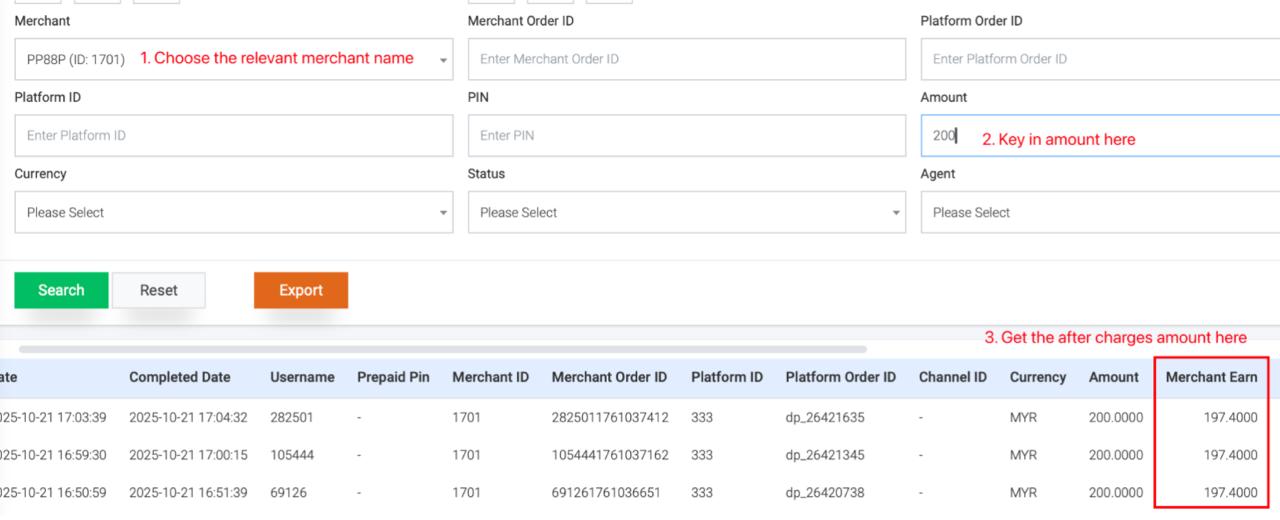
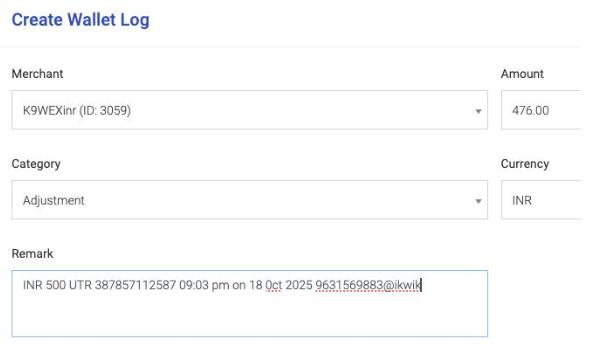
  1. Get the after charges amount from order list 

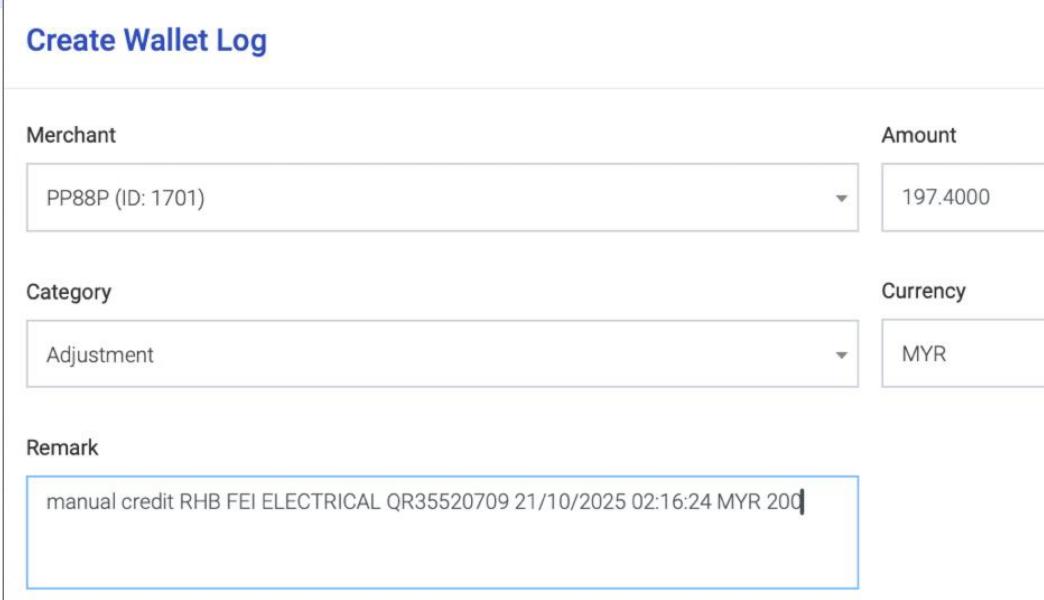
 2. Create wallet log, category choose adjustment

3. Update correct Remark > bank name, reference number (record payer name for affin case), date and time , amount

Incorrect example

  1. Mention the deposit bank name in brackets
    • Should be our bank name (RHB) in this example
  2. Wrongly choose the category of manual topup
    • Causing the backend data to become messy
  3. Credit the amount before charges to merchant account
    • Causing loss or create unnecessary follow-ups 

Note:for the slip without reference number can direct record the QR reference number in bo  

For example: Ambank / GXBANK / Shopeepay

Steps of manual add back credit (INR) 

  1. Confirm Payment with Oxpay
     Ensure that Oxpay has received the payment.
  2. Balance Credited by Oxpay
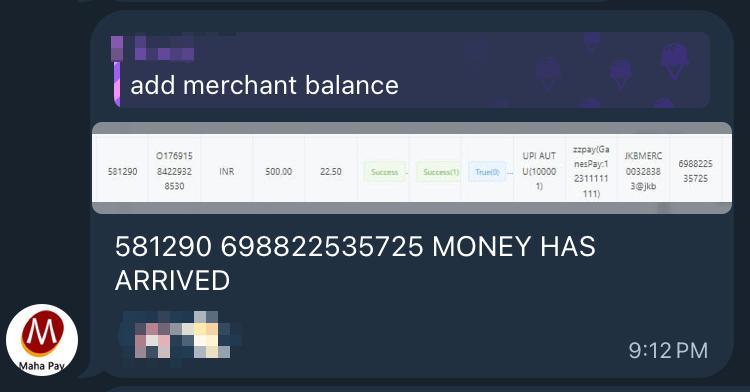
     Oxpay will manually add balance to our system (they will provide a screenshot as proof).
  3. Credit to Merchant Wallet
     SLs create a wallet log to manually add the received amount (after changes amount) to the merchant’s account. Remark mention UPI, UTR, Date time and amount
  4. Open Deal at AlphaTech system
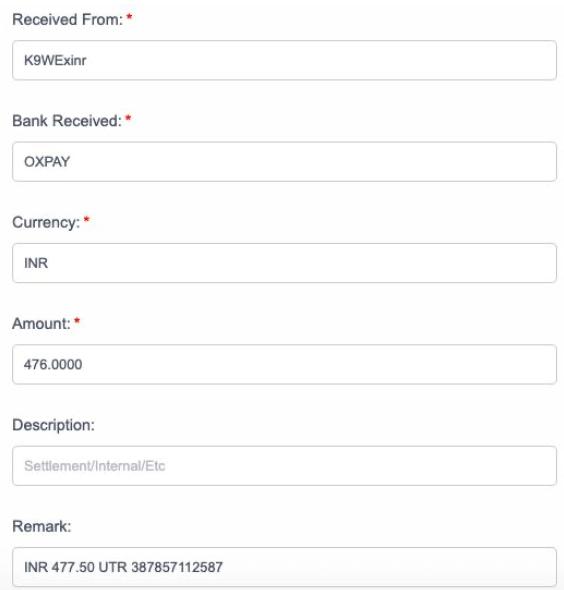
     Received payment from Oxpay need to open deal at system. Amount should be the amount credit to merchant

Process in wallet log

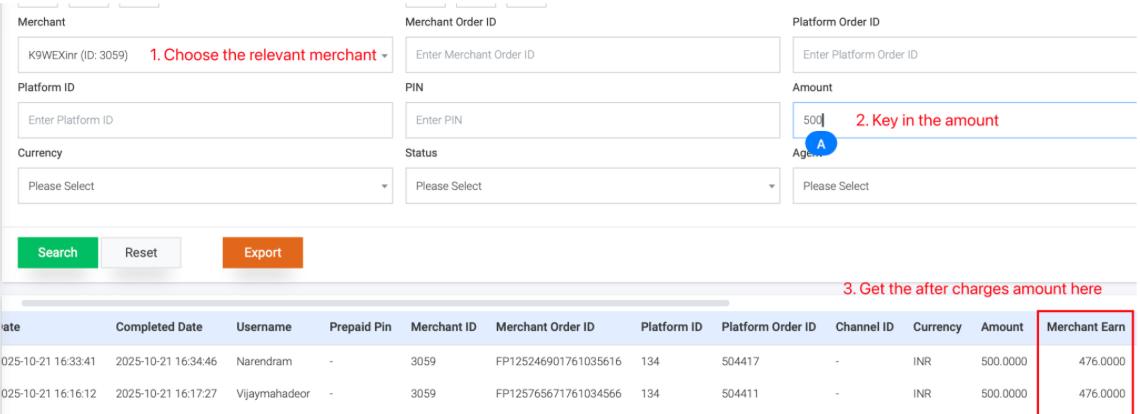
  1. Get the after charges amount from order list 
  2. Create wallet log, category choose adjustment 
  1. Open FPR Deal and remark need to mention the amount received from Oxpay and UTR


Steps of topup USDT-MYR 

  1. Retrieve the daily rate from SS016(1) TRADING WOOD & Fpay X HH T339
  2. Compare the rate and take the stock from higher rate provided
  3. Apply the necessary adjustment ( -0.02-0.05) using lower rate and share the final rate with the merchant.
  4. Wait for the merchant to inform how much MYR they intend to top up.
  5. Convert the MYR amount into USDT and get the wallet address from provider.
  6. Share the address with the merchant and wait for the successful transaction slip.
  7. Send the transaction slip to provider for confirmation.
  8. Once verified, proceed with the top-up and screenshot the confirmation to the merchant.
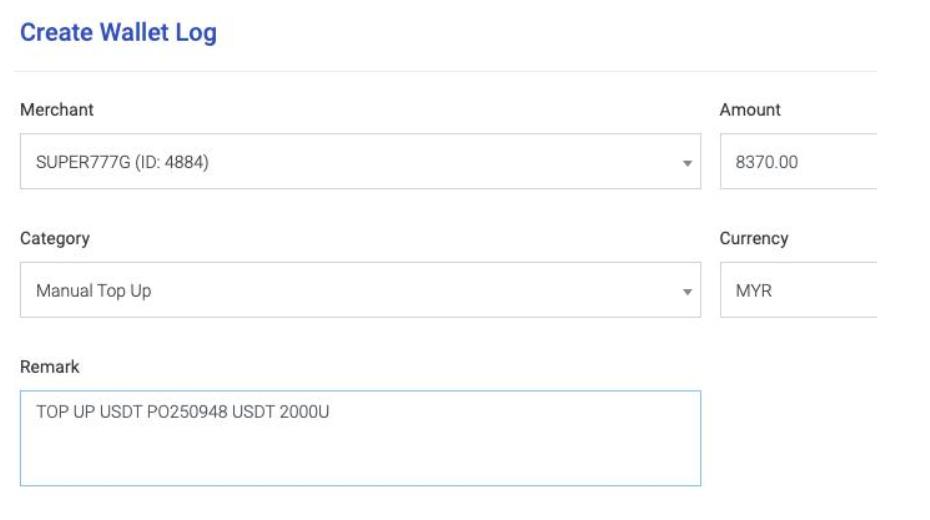
  9. Go to Wallet Log, fill in all relevant details, and submit the entry.
  10. Open deal in Alphatech system with mentioning the ID that sent out by provider

Note: USDT-MYR:  Higher rate is better rate

Example

Super777G 要内充2000 U

rate from WEWE – USDT – MYR 4.24

rate from HH  USDT – MYR 4.235

我们给merchant rate – USDT – MYR 4.185

And we buy from Wewe

Calculation provided to merchant: 

USDT – MYR 4.185 

2000 U x 4.185 = 8370MYR

Example wallet log

Category: Manual TopUp

Remark:Mention topup amount (USDT) + provider code

Example: Topup USDT 2K (P0250948) 


Note: HH will not provide code to us, can mention only provider name in such case

Example: Topup USDT 2K (HH) 

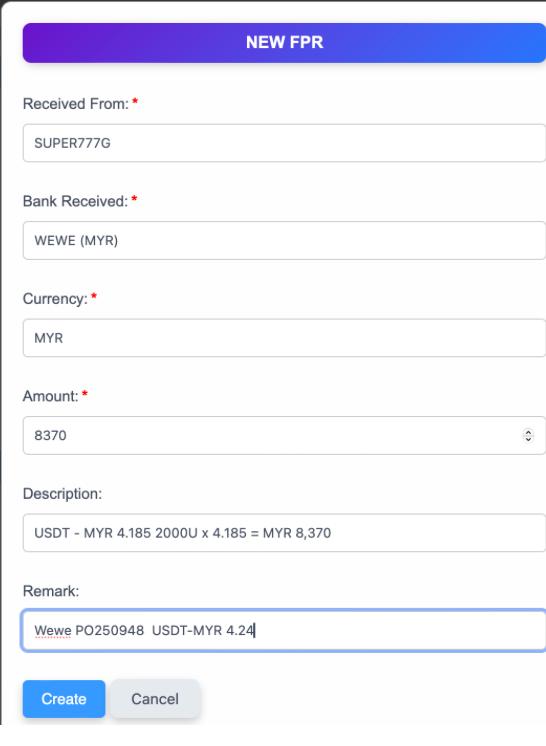
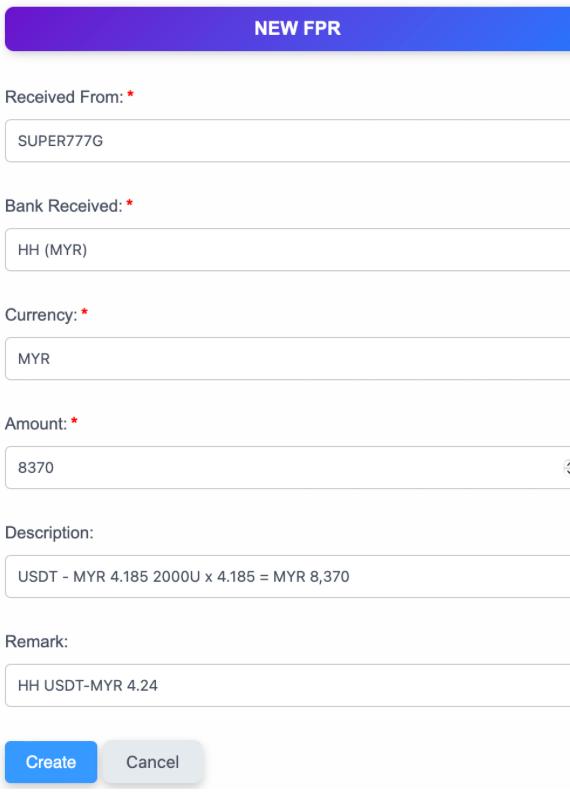
Example Open Deal in Alphatech (WEWE)

Bank Received: Provider (MYR)

Exp: WEWE (MYR)

Currency: MYR

Amount: 8370 (amount topup to merchant)

Description: Calculation provided to merchant

Remark: (provider) code + exchange rate

Example: Wewe P0250948 + USDT-MYR 4.24

Example Open Deal in Alphatech (HH)

Bank Received: Provider (MYR)

Exp: HH (MYR)

Currency: MYR

Amount: 8370 (amount topup to merchant)

Description: Calculation provided to merchant

Remark: (provider) + exchange rate

Example: HH + USDT-MYR 4.24

Incorrect example

  1. ❌Bank received choose WEWE (USDT)
    ✅Should be WEWE (MYR)
  2. ❌Record USDT amount
    ✅Should be MYR amount that topup to merchant
  3. ❌Remark write “add to merchant wallet”
    ✅Should be (provider) code + exchange rate

⚠️注意事项

  1. Bank Received WEWE(MYR) /HH(MYR)
  2. 记录我们添加给商户的马币数额,而不是我们收到的USDT数额
  3. 开单和添加wallet log时,remark一定要写到
    金额 + provider

Steps of MYR-USDT settlement process

  1. Get the daily rate from both SS016(1) TRADING WOOD & Fpay X HH T339
  2. Compare the rate to find out the better rate
  3. Apply necessary adjustments (+0.02 ~ 0.05) using higher rate and share the final rate with the merchant.
  4. Wait for the merchant to inform how much MYR they intend to submit.
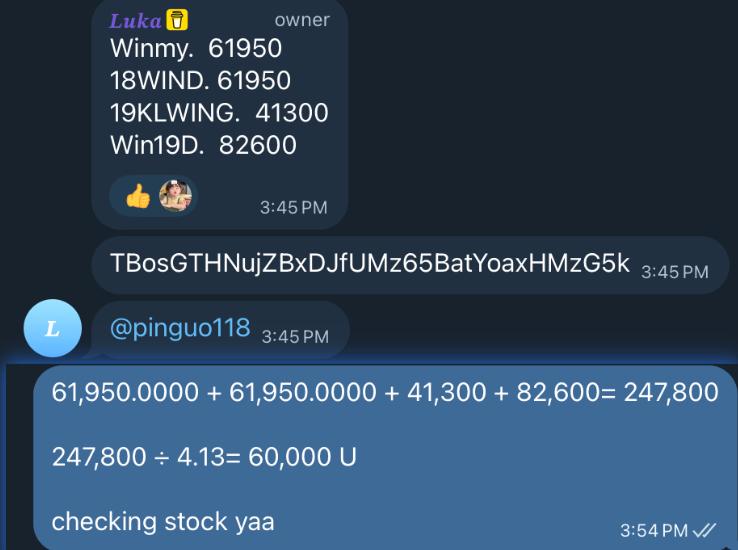
  5. Convert the MYR amount to USDT and send into (ITN) CS OPT and Tag Kimmy and Fiona
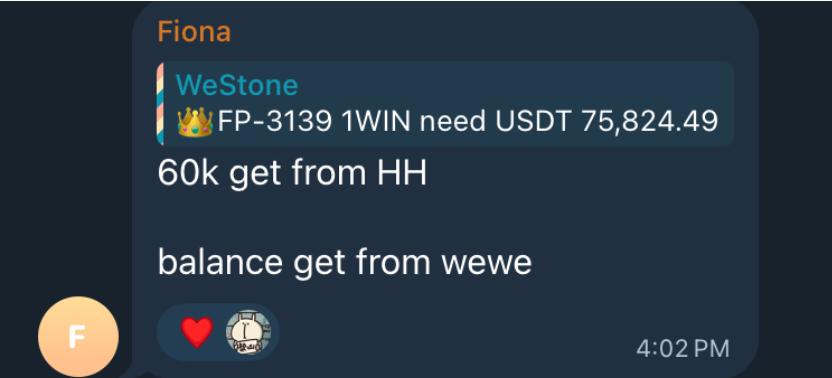
  6. PIC will decide we use which provider to process this settlement

  7. Check stock with the provider before processing
  8. Before proceeding, double-confirm the wallet address and the final amount with the merchant.
  9. Share the confirmed details in  (ITN) CS OPT
  10. Send the wallet address to provider for processing.

  11. Assigned and completed the deal in Alphatech system once provider send out the code (wewe case only).
  12. Send slip to merchant once provider provided it.


MYR- USDT:Lower rate is better rate

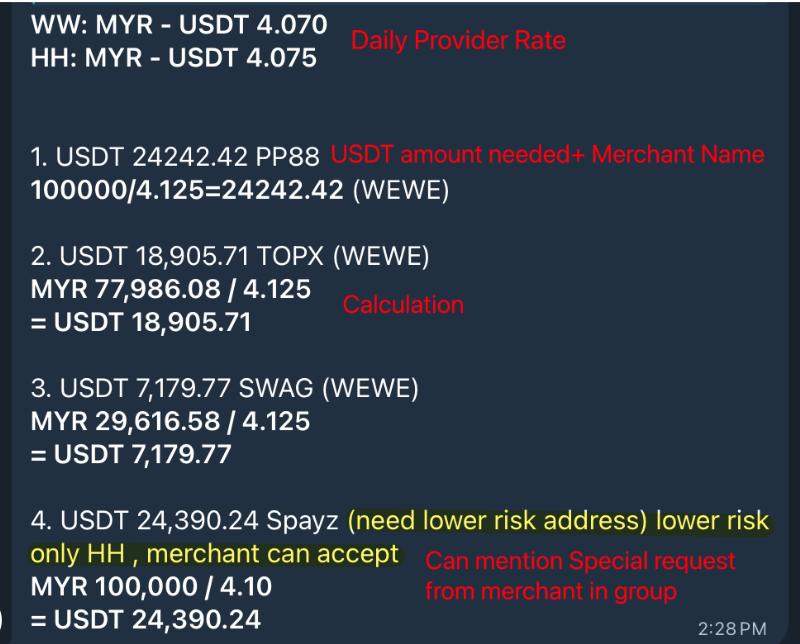
Example of the format inform in group

  1. Mention Daily Provider Rate
  2. Send in the request with USDT amount+ Merchant Name+Calculation
  3. If merchant has special request,can direct inform in group


Note:  Kindly keep on update in the same list but not send the request separately

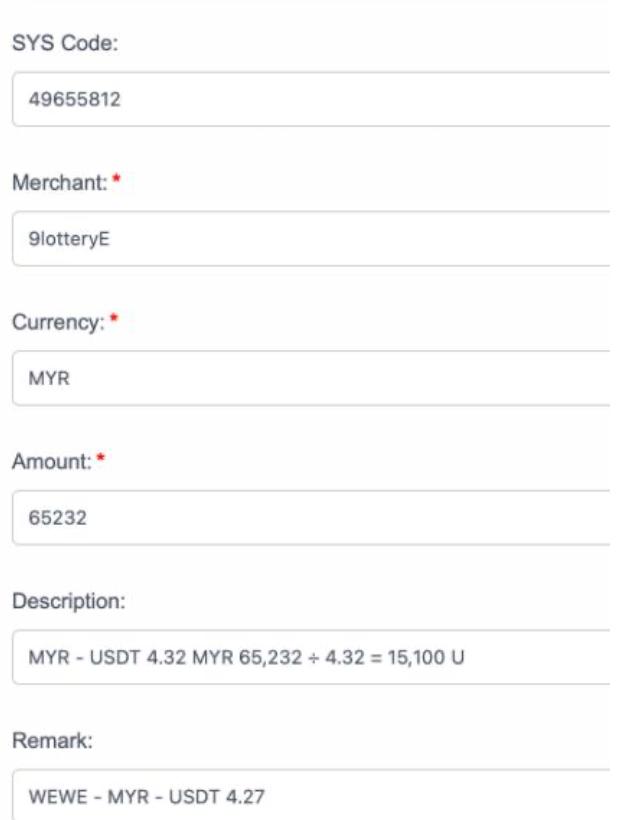
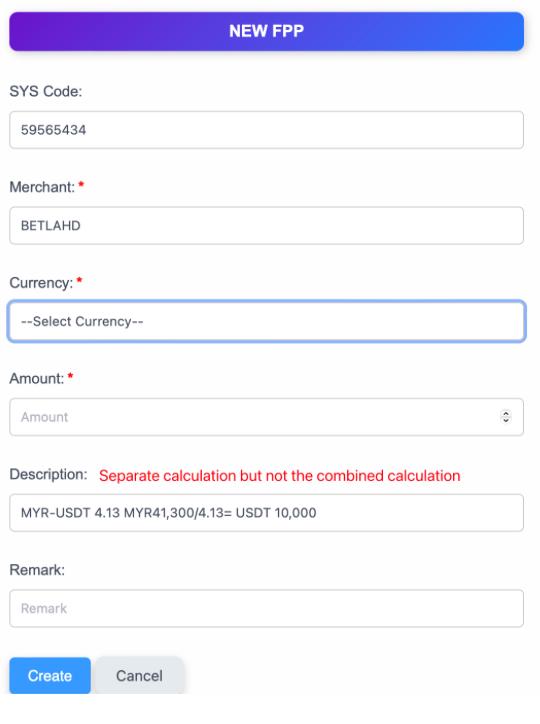
Example Open Deal in AlphaTech

(WEWE and HH)

SYS code: FP Withdrawal list G ID/ RP settlement list payment ID

Merchant: Merchant Name

Currency: MYR

Amount: amount submitted backend

Description: Calculation provided to merchant

Remark: (provider name) + exchange rate

EXP: WEWE MYR-USDT 4.27

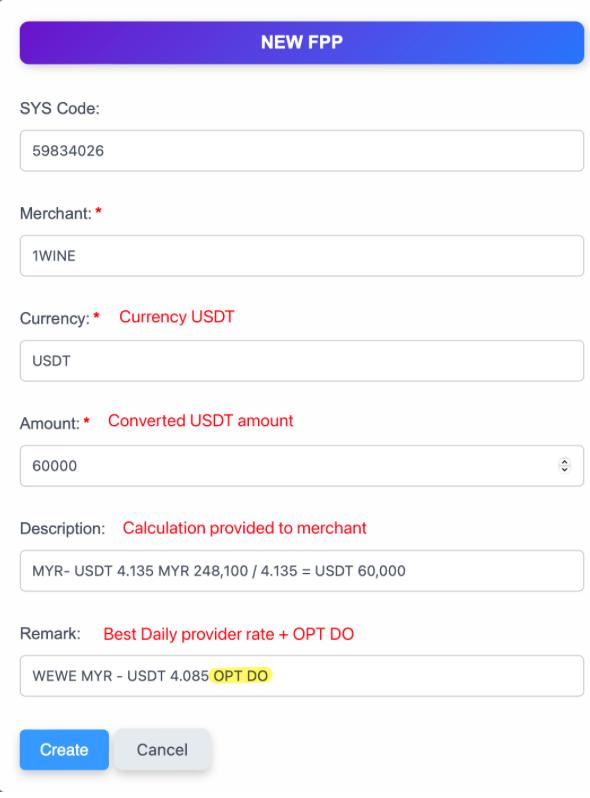
Example Open Deal in AlphaTech

(OPT)

SYS code: FP Withdrawal list G ID/ RP settlement list payment ID

Merchant: Merchant Name

Currency: USDT

Amount: amount converted to USDT

Description: Calculation provided to merchant

Remark: (provider name) + exchange rate+OPT DO

EXP: WEWE MYR-USDT 4.27 OPT DO

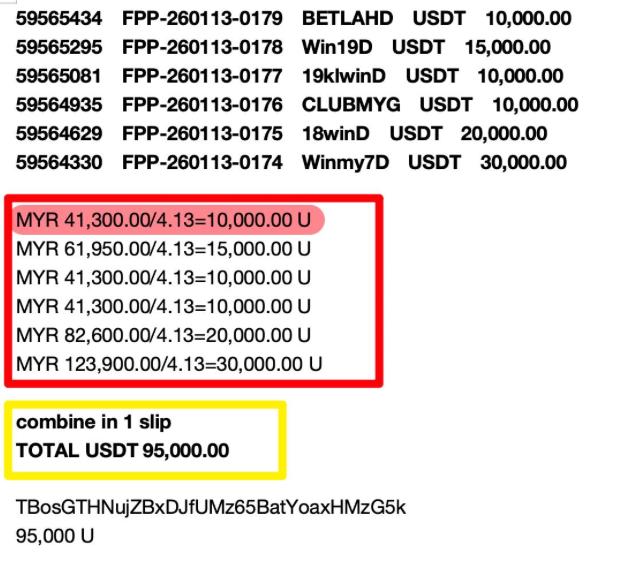
Special Case 1: Few settlement combine in one slip

  1. Sometimes merchant will submit few settlement and we will process in 1 slip
  2. Kindly separate the calculation of each settlement when send in group and open deal

When send into CS OPT should:

     – follow the queue, list down one by one

     – MENTION combine in 1 SLIP, TOTAL amount

Special Case 2: One settlement send to 2 provider for processing

  1. Sometimes due to inventory issue, we will separate the settlement amount to 2 provider for processing the payment
  2. We need to open deal separately and send address accordingly

Example deal

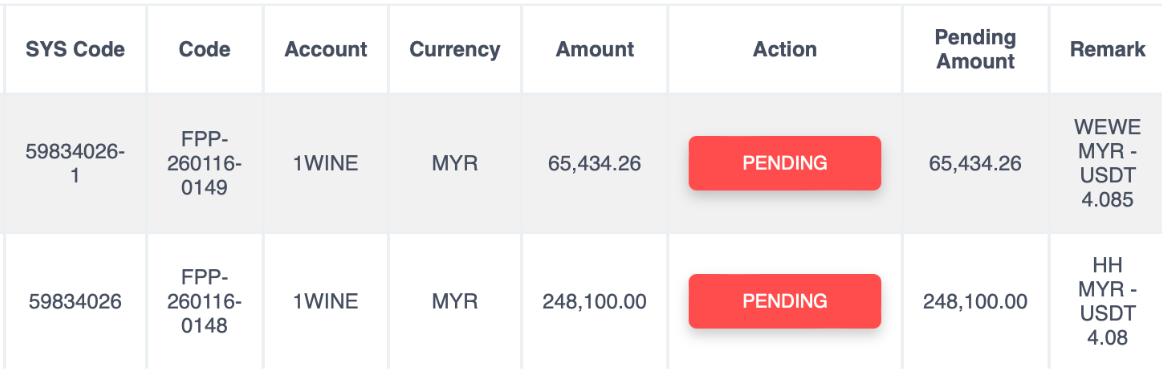
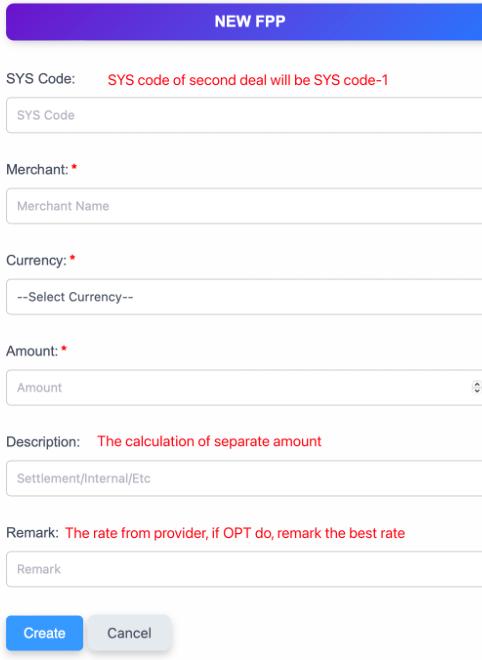
  1. The second deal SYS code will be SYS code-1
    1. For example: 59834026-1
  2. Description should show the separate amount but not total amount of settlement
  3. Remark the rate from different provider, if OPT process the settlement, kindly remark the daily best rate

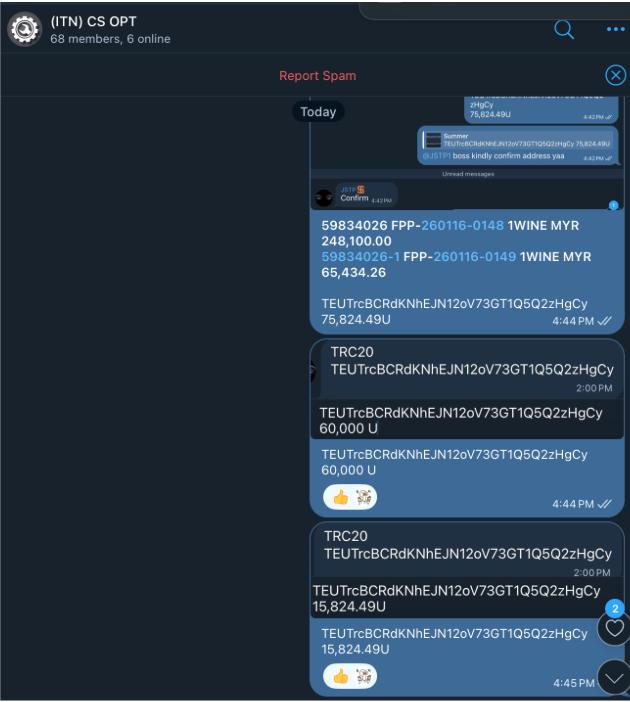
Example of sending into CS OPT

  1. Mention both deal details and total amount of the settlement
  2. Send the address separately with the amount accordingly
  3. Direct forward the address to provider

Fpay/ Rapidpay

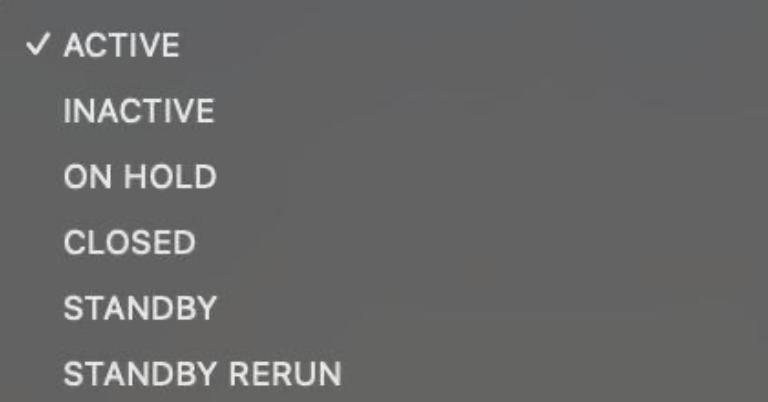
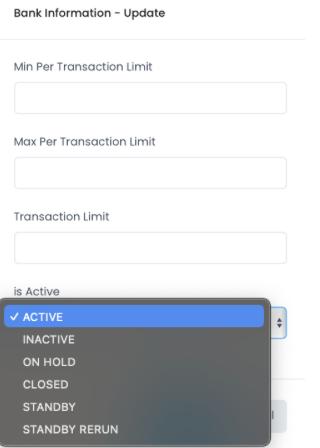
  • ⁠  ⁠Go to payout bank infomation > edit > choose closed at “is active” option if we want to close bank


  • ⁠ Go to payout bank infomation > edit > choose active at “is active” option if we want to open bank 


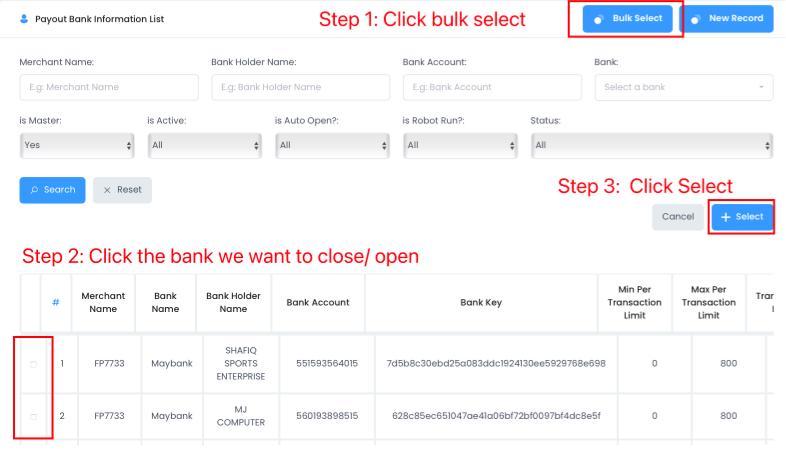
Bulk open/close payout bank

 If we want to close few banks at the same time:

Go to payout bank information list > Choose bulk select > Tick the bank we want to close > select > is active change to closed

Situation need to close bank

  1. No balance
  2. Reached limit
  3. Bank robot issue
  4. Bank acc issue
  5. Phone disconnect

Note: Kindly choose closed but not ❌inactive at the is active option

Recount function

Situation need to manually recount

  • When we open bank before the time of recount, we can manually press recount button, so the payout will not all go into the new open bank
  • When you found that many payout goes to same bank and cause stuck, you can press the button too

Steps to reset success count

  • ⁠  ⁠RP Dashboard > Payout robot list> press reset success count > key in google auth > done


Payout found in FP payout list but not found in RP side

  • IT support not able to check on this issue. So once found out the issue, can direct send the issue+payout ID to SL group 
  • ⁠We will resend payout request to RP side every 30mins, start count from 12am (eg: 1130am, 12pm, 1230pm will resend)
  • ⁠If merchant request to reject payout, double confirm it not shows at RP robot list, and not the time will crash with the resend process
    • exp: 3mins before the resend process should not manual reject any payout request
  • If IT support say the payout is not found/can reject,no need to process reject, we only process reject if and only merchant request on it


VPAY

  • ⁠  Withdrawal bank list > Edit > User ID > choose testmerchant( userID:5)


Note: must close at VP side first then only proceed to close at RP side


For VP, close the bank if and only merchant request to do so

  • ⁠  ⁠Go to payout bank infomation > edit > choose closed at “is active” option if we want to close bank
  • ⁠ Go to payout bank infomation > edit > choose active at “is active” option if we want to open bank 

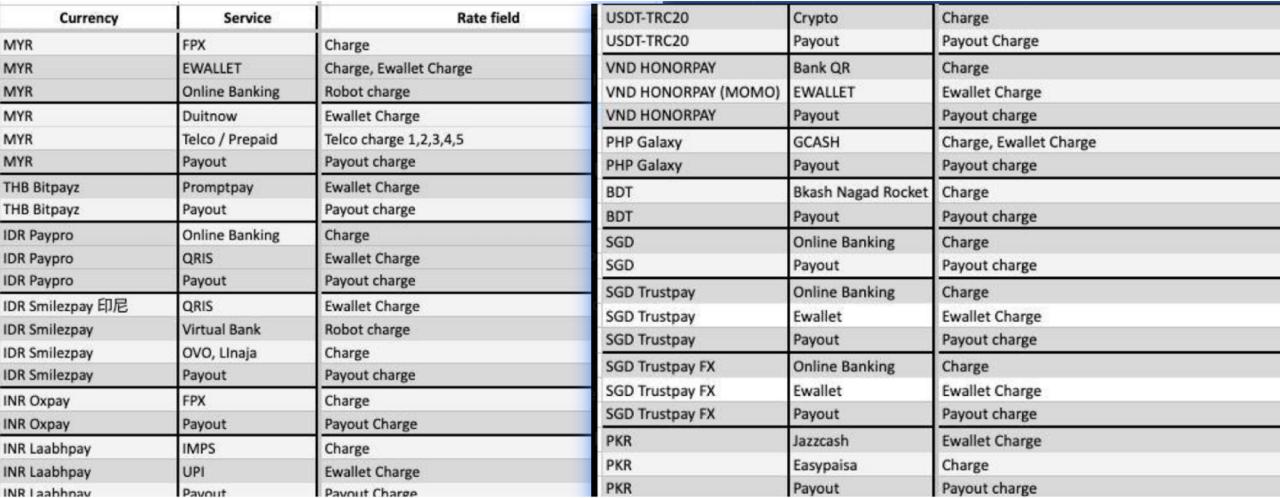
Some merchant will reconfirm their service charges with us, and different service we will setup rate at different rate field

Go to FP merchant list > bank details > Check the relevant rate field

Note: If an account subscribing both OB+DN, kindly check Robot charge for OB rate and Ewallet charge for DN rate

Settlement time:

周一-周五  10am – 12am (MIN 100M per transcation)

周六 – 周日 10am – 6pm ( MIN 200M per transcation, slip will be late)

Submit by SL and confirm by designated person

Step1: Add bank details

Step2: Submit settlement

Step3: Send screenshot into gateway group chat

Step4: Once done settlement, pls assign and complete deal at Alphatech

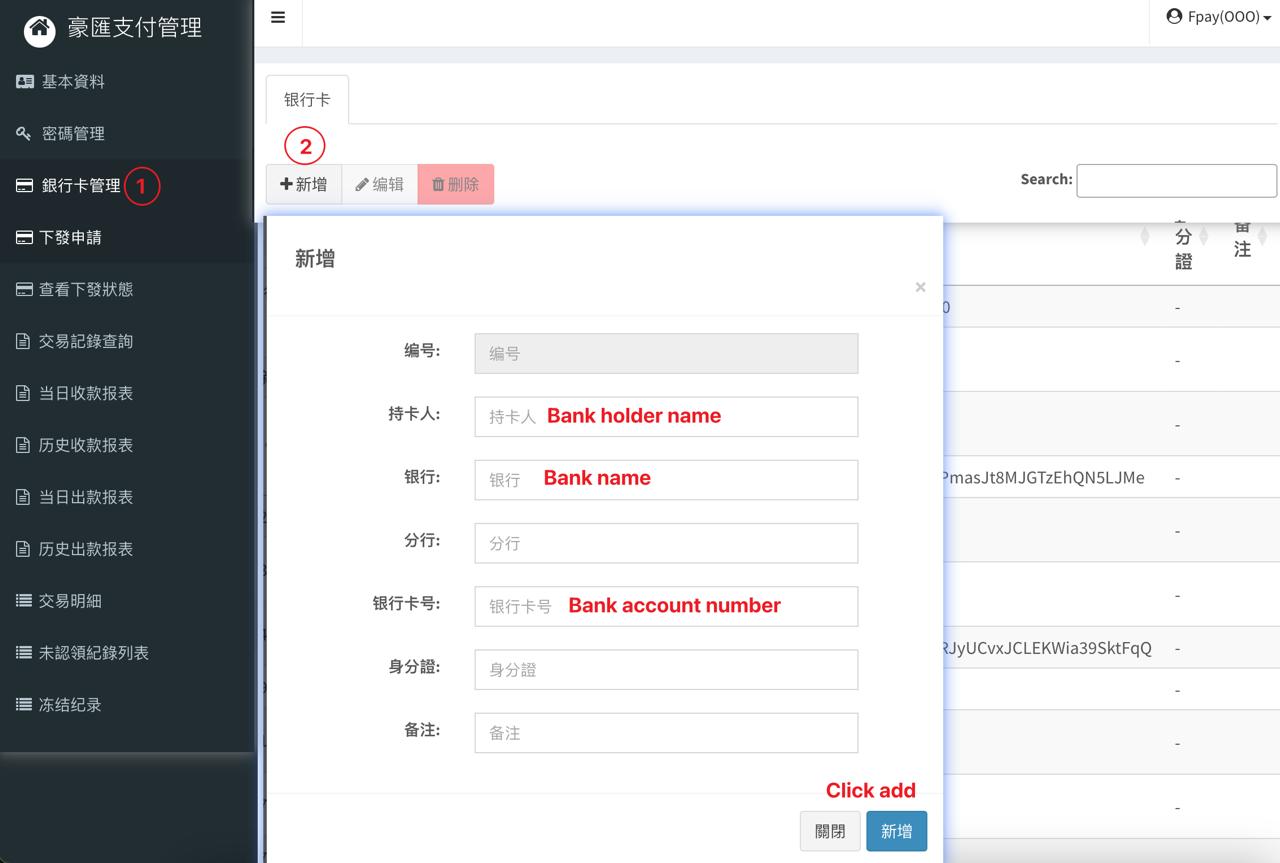
Step 1: Add bank details

(check before add to avoid any double adding bank details)

Step 1: Click 银行卡管理

Step 2: Click 新增

Step 3: Key in bank details and click 新增

Step2: Submit settlement

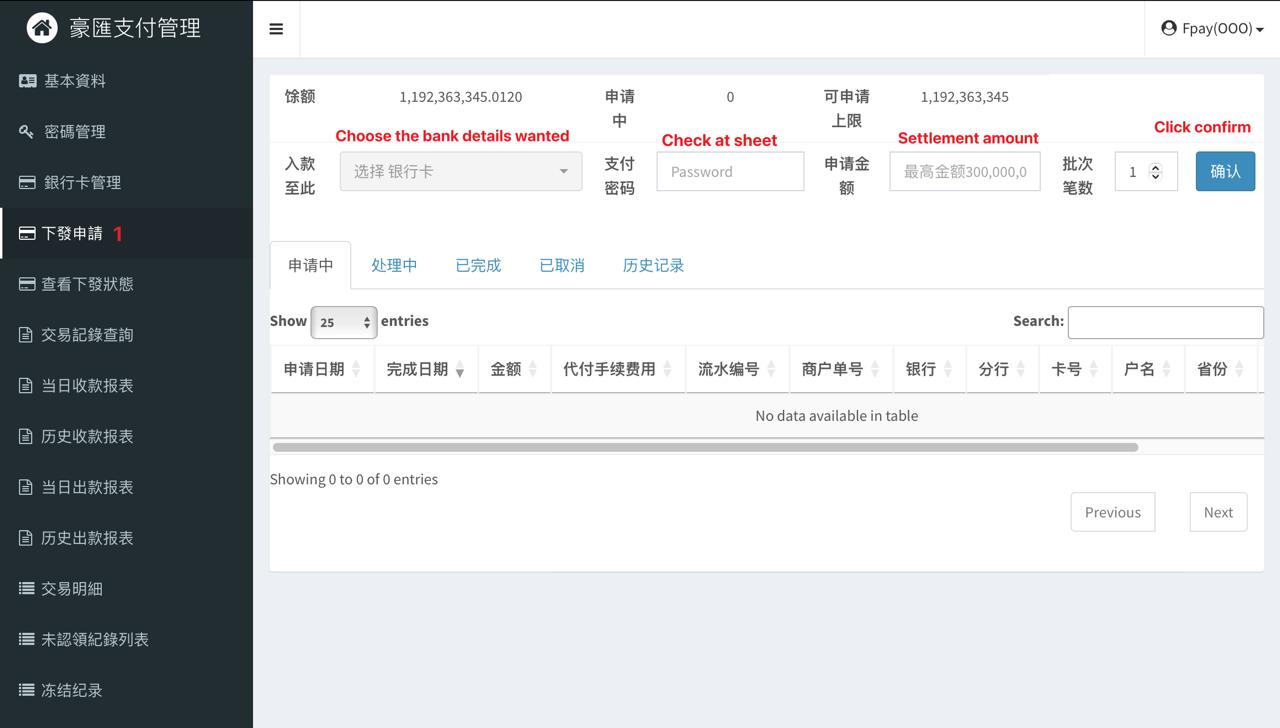
Step 1: Click 下发申请

Step 2: Key in bank details, password and settlement amount

Step 3: Click confirm and key in google auth 

Step3: Send screenshot into gateway group chat

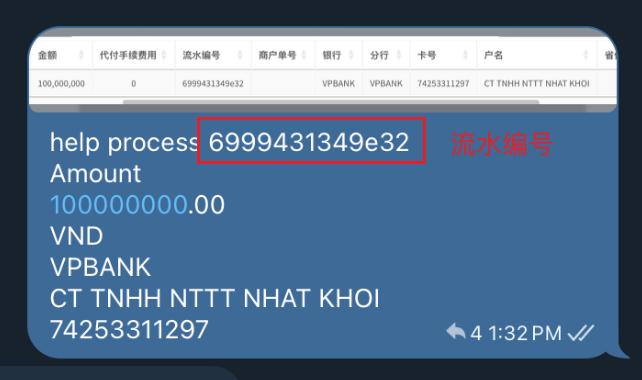
Once done submit, our settlement request will shown as below

Screenshot it and provide details below into gateway group chat (honorpay)

  • Screenshot
  • Settlement bank details
  • Settlement amount

Once gateway done process, kindly send slip to CS OPT and merchant side

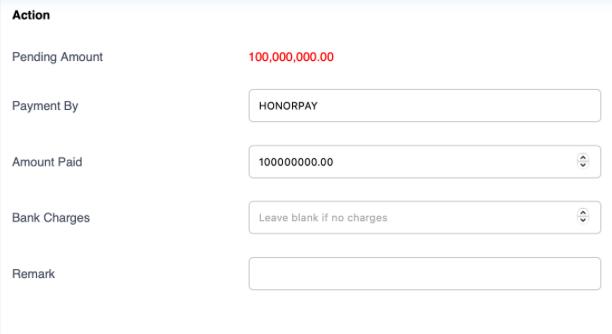
Step4: Once done settlement, pls assign and complete deal at Alphatech

Step 1: Assign payment

Step 2: Fill in the payment details accordingly

Step3: Click submit

TAGS

CATEGORIES

Uncategorized

Comments are closed